Nominated Contacts can edit the profiles of other users as well as their own profiles.
Users can only make changes within the limitations imposed by their own permission levels. For example, a user whose USO profile is just Staff can make changes to their own profile only, a Nominated Contact can their their own and other people's profile settings and a user with higher level permissions can make more extensive profile changes.
To edit a user's profile, find the relevant USO account using the User List/Search function and click on Details to the left of the person's name. The USO account for that user will be displayed and permissions will be editable via the blue section in the right part of the screen.
Profile information is found in the blue part of the user's account as illustrated below.
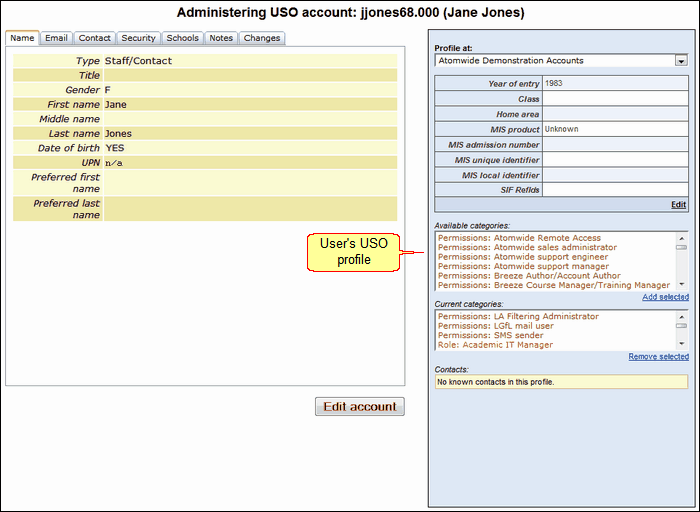
Amending/entering information
To change the information found in the top part of the blue section click Edit.
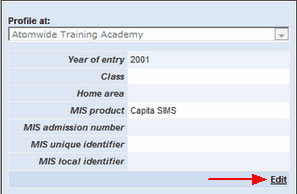
The Profile at: dropdown menu should be used to select the school at which the user's profile needs to be accessed. The menu is only enabled if the user is associated with more than one school. If the user belongs to one school only, the school will be shown in grey text.
The top part of this section contains only a few editable fields. The remaining fields are populated with data which is automatically exported from the school's MIS.
The Year of entry or Class details can be entered manually.
The Home area details can also be entered. This is relevant only for users who access your local network via Wavenet Education's RAv3 solution.
If you are not using this service, entering any details in this field will have no effect.
If you are using RAv3, this field may contain the name of the user's "home share" on that network.
However, if your school uses USOSync, this field should be left blank as the name of the user’s home share will be the same as their USO username.
If your school does not use USOSync, the name of a user’s home share can be entered by a Nominated Contact, so that a link to this resource is automatically available when that user connects to the network.
The MIS product field gets automatically filled in when your school begins exporting data via USO-AutoUpdate. When the Head enables the AutoUpdate data exports, they select which type of MIS is used by the school. If your school is not using USO-AutoUpdate then it is possible for this field to have the wrong MIS entered without any negative impact on your school's data.
The MIS admission number and MIS unique identifier are exported directly from the MIS.
The MIS local identifier is likely to be exported from an MIS if the admission number is unavailable or deviates from the accepted hexadecimal format.
When a change has been made you must click Update to save it.
Changing permissions and roles
To amend your own or another user's permissions, use the lower half of the blue section.
The Available and Current categories boxes refer to user permissions and their roles within the school. It is essential for all users to have the correct permissions to access the services and functionality they require.
The list of Available categories you see will be limited only to those that are changeable by you. Anything seen here can be granted to yourself or another user.
To give a user an additional permission, a new role or give access to content, find the relevant item by scrolling through the list of available categories. This list is grouped and ordered as follows: permissions, role, subject year group, content.
Select the relevant item by clicking on it once to highlight.
Click Add selected.
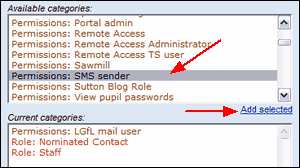
When added, items are shown in the Current categories box. This box states what the current permissions/roles a user's account contains at the present time.
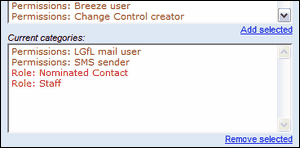
Each person's permissions and roles will have to be defined individually using this method.
If any categories should not be associated with the user, select that category by highlighting it and click on Remove selected. The list of Current categories will show all categories associated with the selected user's account. If you try to remove a category not allowed by your own permission level, the action will be denied.
As a general rule, Permissions categories can be changed by Wavenet Education, most Role changes can be made by Nominated Contacts and some can be carried out by regular staff, Subject and Year groups can be edited by everyone. Access to some content can be granted by Nominated Contacts but mainly this is down to Wavenet Education to grant.
Any changes made will take effect almost immediately to limit or increase the user's access.
Please note that when adding certain categories, such as Subject or Year group, to a Staff member's profile, an additional dropdown menu will prompt you for more information. You will need to specify the level of involvement the individual will have in the selected category.
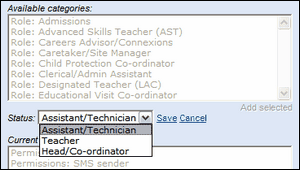
Choose an option and click Save. This will allow the new category to appear to the list of Current categories.
Pupil accounts
If the account belongs to a pupil, it may have one or more parent/guardian contacts associated with it. These will appear at the bottom of the blue section. When looking at the account you will see one of the following scenarios:
If you are a Nominated Contact but do NOT have View Secure MIS data enabled in your USO user profile, you will simply be able to see the number of contacts that exist for that person. If the user has no contact information, the screen will show that the user has zero contacts.

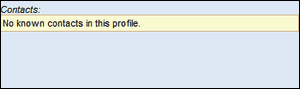
If you are a Nominated Contact and have View Secure MIS data enabled in your user profile, you will be able to see more detailed information. For a user who has no contact data, the screen will show "No known contacts..."
If you are a Nominated Contact and have View Secure MIS data enabled in your user profile, you will be able to see the names, mobile numbers and email addresses of pupils' contacts.
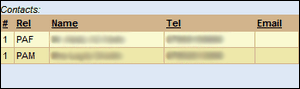
 Please note that only schools using USO-AutoUpdate will have pupil contact information available via the support site.
See also:
