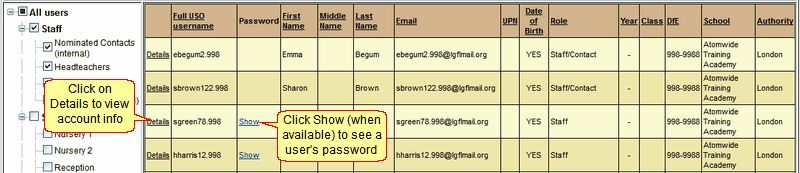
Search results appear in the central window.
Select a user from the list and click on Details to obtain information about them.
Depending on your access and whether the user is staff or a pupil, you may also be able to change some settings on their account.
Nominated Contacts will be able to see the passwords of other users so long as those users are not Nominated Contacts or Headteachers.
Clicking on Show in the Password column will reveal a user's password if your LA policies permit you to see it.
Clicking on Details in the first column (to the left of the username) will show the user's account information. This can then be edited.
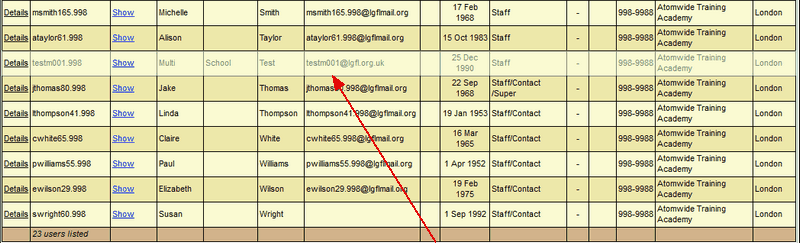
Sometimes your search will show certain user accounts which are greyed out.
Greyed out accounts indicate that the main association of that user account is not your school.
This means that the account is being shared between more than one school and your school was not listed first when the account was created.
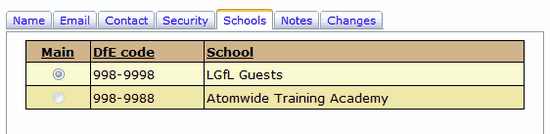
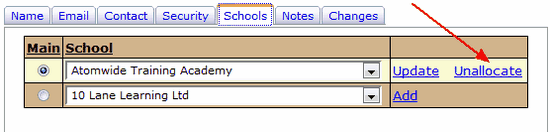
To find out which schools are sharing the person's account click on Details to the left of their name and navigate to the Schools tab.
As the account is greyed out for your school, your school will appear second (or lower) in the list. The radio button for Main will be set for the first school listed.
If you need this main association changed, please raise a support case.
|
If you run a search and find out that people who have left your school/establishment still have active USO accounts you can remove the accounts by unallocating them.
Unallocating an account will completely de-activate the account and remove it from the school. This does not completely delete the account from the USO database instead the USO account is simply suspended and can be re-activated if needed.
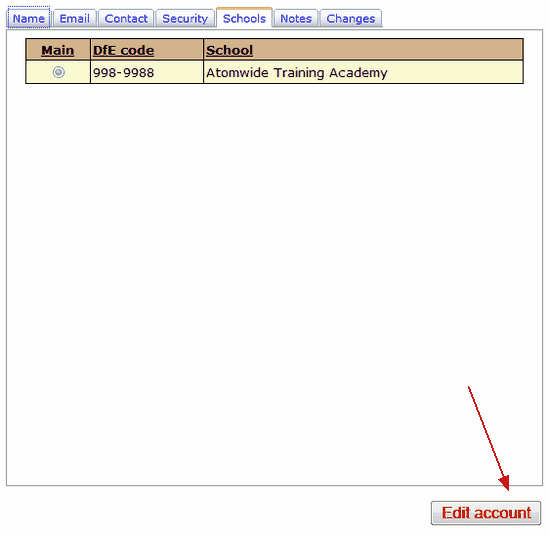
To unallocate an account click on Details to the left of the person's name, navigate to the Schools tab, and enter edit mode by selecting Edit account.
Once in edit mode you will see a blue Unallocate link. Click this to remove the account from your school and disable it.
 Please note that unallocating an account disables all services available to that account, including email. Leaving an account unallocated for more than a few days can cause mail to be lost. Please note that unallocating an account disables all services available to that account, including email. Leaving an account unallocated for more than a few days can cause mail to be lost.
|
There may be occasions where an account is created for a person who already has an account.
There are many different reasons why this may happen, the most common being that an account has been incorrectly matched.
When there are duplicate accounts the first thing to do is find out from the person which account they are using and therefore want to keep.
You can then unallocate any other accounts that are not being used.
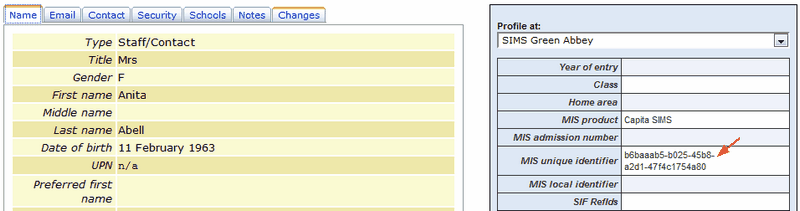
However there are some occasions where you will not be able to unallocate an account yourself. This may happen if the account is associated with a data export from the MIS which creates a number known as the MIS GUID.
This number is displayed in the Details section of the account on the right hand side
Such accounts will get recreated every time a data export is processed so unallocating it manually will not resolve the issue.
If you find yourself in this situation please raise a case and explain to the Service Desk what you would like to be done.
|
To facilitate the distribution of user account details, at the start of a school year, for example, you can export the relevant pupil's details into a specially formatted PDF.
This document is set up in such a way as to make it easy to cut it into individual sets of credentials and physically hand them out to pupils.
Once a search has been run and the relevant pupils are displayed, an Export as PDF button will become activated.
This will open a dialogue window asking whether you want to save or open the file.
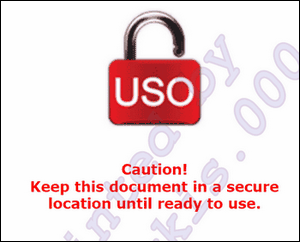
The first page of the file will show the following:
The pages after the initial one will contain pupil details, with one class per page. The details are formatted so as to be easily printed and cut apart in order to handed out.
When pupils receive their credentials they should be encouraged to remember their password, tear off that part of the paper and dispose of it once it's detached from their username.
Please note that as with all other actions performed in the support site, use of this feature is fully audited.
|
See also:
Selecting the search criteria
Additional search criteria