To find a particular user, selecting from the various available search criteria will display the relevant results.
 |
|
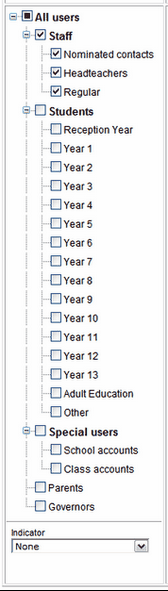 |
In the image above, the Local Authority field will show your LA based on your login details. The School field will allow you to select a school from a dropdown of schools in your LA. The Profile field allows you to select a user profile from a dropdown menu based on whether you wish to find users with particular Permissions level, in a specific Staff Role, as well as by Subject or Year group/Key stage. If you apply this filter and get no results after running a search, either there are no users with this status or your account does not have sufficient permissions to view the information. Alternatively, you can use the Name fields on the right hand side (above) to search for a particular user by either Username, First name, Last name or a combination of these. These fields can also perform wildcard searches where entering the first few characters in any of these fields will show everyone whose names begin with those characters. (For example, entering pa in the First name field will show every Patrick, Paul, Patricia, etc.) The panel on the left offers the option of searching for a general group of users. You can find all Staff or a sub-category, search for Students by year or search for other types of system users such as Special Users (these can be a generic school user or a class user), Parents or Governors. |
You also have the option to add an additional column of information found under the Indicator dropdown menu.
See also:
