To generate a list of USO accounts at your school go to User Accounts and select the User List/Search option.
 Please note that Local Authorities have differing security policies and the ability to view and change certain user details (such as passwords and dates of birth) may be more limited than outlined here.
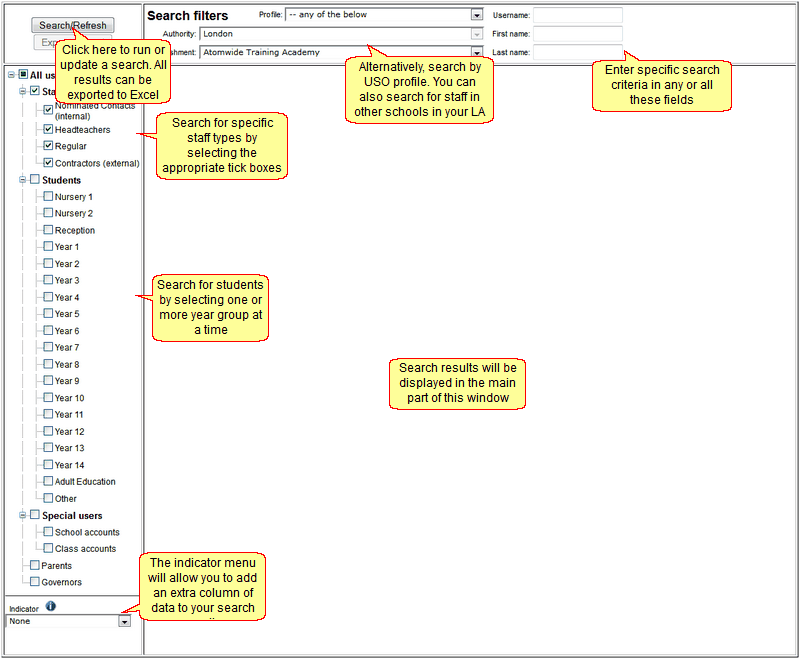
The user interface is divided into three main sections:
Horizontal panel:
•On the right are fields which you can fill in to run a search. You can search for a specific person by entering their USO account (if known) or their first and/or last name.
•The central section displays your LA name and the schools within the LA. This can serve as an address book, allowing you to find staff users in other schools.
•Above the LA name, you can select a USO profile option if you wish to search for a person using this criteria.
•In the top left corner is the Search button to run your search when ready.
Vertical panel:
•Allows you to select search criteria which will filter the list by type of user:
Under Staff you can search for All Staff, the Head's account, Nominated Contacts or Contractors.
Third party support companies who act as Nominated Contacts in a school will be found under Contractors.
Make your selection and run the search.
•When searching for pupil accounts, you can filter these by year group by ticking the relevant boxes.
Make your selection and run the search each time.
The central section of the screen is initially empty until a search is run. It will then be used to display the results.
See also:
