Edit Contact Details
To edit or add a telephone number click on the Contact tab.
If you enter a mobile number for a user, you will be alerted that the number is not verified.
 Users must log in to their own account to go through the process of verifying a mobile number. It is not recommended to initiate the verification process on behalf of another person.
An exception exists where a school is using USO-Autotext. In such circumstances, the Head can tick a box that will allow all staff mobiles exported from the MIS via AutoUpdate to be considered as "trusted" by the system. See the AutoUpdate settings section for further details.
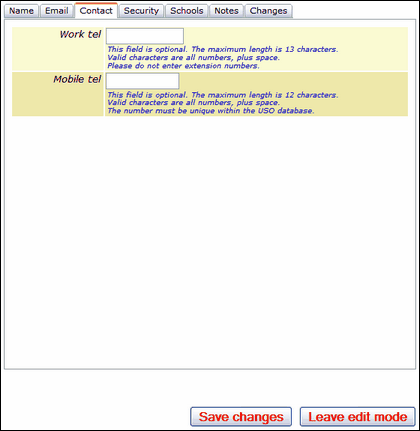
If you have finished click Save changes to update or click on another tab to continue.
If you make changes to the account that you then decide NOT to save, click Leave Edit Mode to exit without saving. Previously existing information will be restored.
Note:
One advantage of having a verified mobile, particularly for Nominated Contacts and Headteachers is that if such a user forgets their password, they can simply phone the Service Desk and a new password will be sent by text message to the verified mobile number of the user. This is only possible when a verified mobile exists for the person in question.
See next:
Changing a user profile - adding or removing permissions
See also:
