Edit a User's School Details
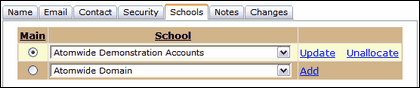
To see and/or change what school(s) a user is associated with, click on the Schools tab.
The first field shows the school the user is associated with.
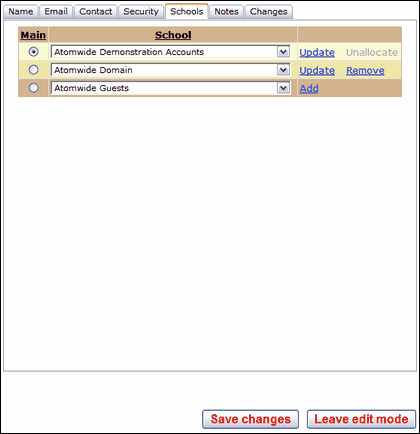
Nominated Contact functionality
A Nominated Contact can unallocate a person if that person's main association is the same school. This should only be done manually if the account is not managed by Auto-Update or another automated process.
If you are unable to unallocate an account of a person who should no longer be associated with your establishment and the account is not removed by AutoUpdate, please raise a case with the Service Desk and ask for it to be done.
Transferring/adding a user to a different school
If you need to change the school a user is associated with you will need to be in Edit mode, select the correct school from the drop-down menu accessed via the down-pointing arrow. Then click Update.
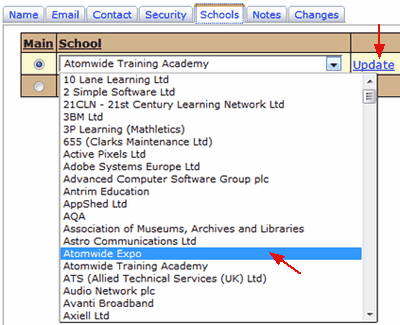
If the user needs to be associated with more than one school, select the correct school in the next row and click Add.
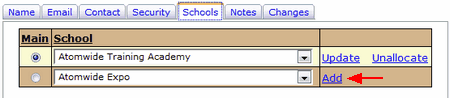
The user has now been associated with a second school.
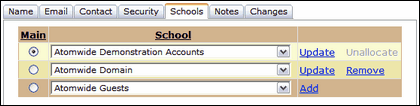
A new line will appear to allow you to associate the user to a third school using the same process. Click Add again every time a new school is selected. You know that another school has been added because the option to Remove appears next to the school.
Make sure that the radio button to the left of a school's name correctly identifies the user's main school.
 Please note any changes to the schools a user is associated with take effect instantly. You do not not need to Save changes in this screen only. Consequently, clicking on Leave edit mode after making changes will NOT undo them as the changes will have already been saved.

See next:
Changing a user profile - adding or removing permissions
See also:
