The Account Details page shows all the information stored about you in your USO account.
This view will be the same when looking up your own account or someone else's.
You can Edit information of an account when in this view.
However the amount of information you can change depends on whether you are exporting data from your MIS or managing it manually.
To Edit any information first select the Edit Account button below the yellow section of the screen.

If you see the following message when in Edit mode your school is exporting data and therefore you can only change a limited amount of information

In this situation the only fields that can be changed are the Preferred names, Email address and Contact details.
All other information is taken from the school's MIS which means the data should be changed there and exported. Otherwise, data changed in the support site will get overwritten by the data received from the nightly exports.
When in Edit mode, navigate between the different tabs to change or add relevant information.
Follow the same process as for Editing User Details.
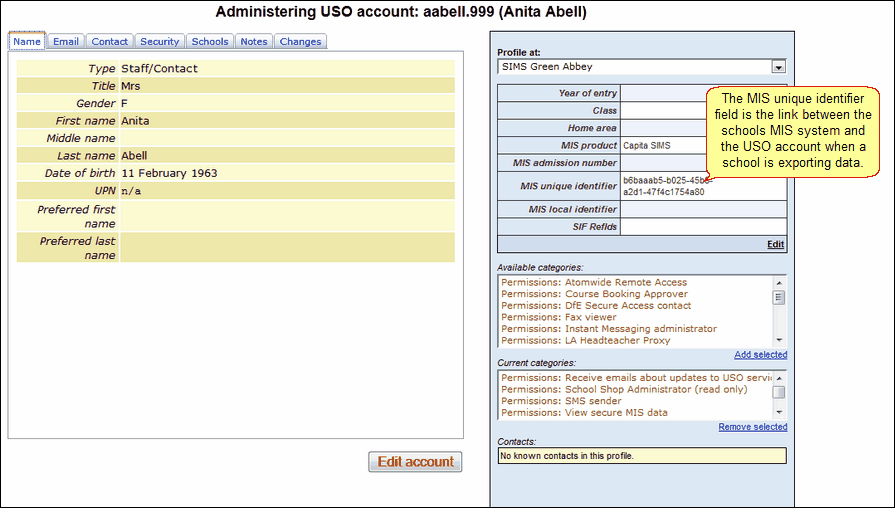
The blue side of the account information screen holds information about the link between the account and the MIS.
The MIS unique identifier shows if there is a link between an account and the MIS. This field will only be populated if the school is using USO AutoUpdate.
The blue side also covers what permissions each account has.
These details are found below the Current categories heading make up part of the USO account profile which is used to determine what services and resources people can access.
Without the correct permissions some resources may be restricted.
For an explanation of each tab, select one of the following:
See also:
