An OTP system provides second factor authentication as an additional layer of security for your USO account.
Why use Second Factor Authentication?
The use of OTP protection for services and resources provides an additional layer of security, and reflects the importance of good data handling and security practices. By enforcing OTP authentication, users gain increased awareness of the sensitivity of certain information they handle, and the responsibility they have for keeping that information safe.
Why use Soft OTP?
This service gives all users in LGfL schools access to second factor authentication free of charge which allows schools to make positive changes in their data handling practices
Second factor authentication comes in 2 different formats: a physical OTP tag or a Soft OTP which offers a code generated through an app on a smartphone.
Users who currently have a physical OTP tag can switch over to Soft OTP if this is a more convenient method. Please find the instructions in Section 1 below.

This option makes second factor authentication available to any member of school staff and is FREE to the school. This option is known as a "Soft OTP". Any staff member can enable the soft OTP feature for themselves but they will then need to use it in every site or service where OTP is enforced.
First time OTP users You will first need an app such as Google Authenticator installed on your smartphone. This can be downloaded free of charge from Google Play and the Apple App Store. A Microsoft Authenticator app is also available from Microsoft for Windows Phones. If you do NOT currently use a physical OTP tag and wish to enable the Soft OTP please log into the USO support site, then select My Account >> Register OTP. From the menu, select the option: Soft OTP tag. When you select the "Soft OTP tag" option and BEFORE you click Register, a warning message will show as illustrated below. This is because once you click Register, you will have committed to use OTP in future and it is essential to register its details into a dedicated app such as Google Authenticator (for iOS and Android).  Click the Register button if you're ready. This action will produce a QR code that you can scan into the Google Authenticator or similar app. 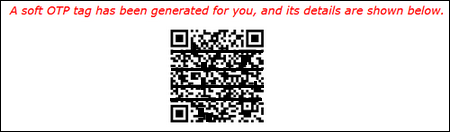
Adding the Soft OTP to your app Open the Google Authenticator app. If you have never used it before, the app will guide you through setting up the first code. If you already use the app, simply touch the + symbol to add a new OTP instance. This will prompt you to scan a QR code or enter a numerical code. Hold your device with the camera facing the computer screen so that the QR code can be read by the app. Done. A code should now be visible on the smartphone screen. Each time an OTP code is required, please launch the Authenticator app and use the code provided to access an OTP-controlled resource. If you use the app for multiple products with second factor authentication, the relevant one in this instance will show USO:yourusername below the code.
Moving from physical tag to Soft OTP If you currently use a physical OTP tag and wish to switch to the digital Soft OTP version, please use your existing tag to log in to the USO support site using the code generated by your tag. Select My Account >> Register OTP. This will present you with a QR code you can scan into the Google authenticator (or similar) app on your smartphone. Please follow the process outlined above under the heading "Adding the Soft OTP to your app".
Once you've switched to the Soft OTP version you will not be able to use the physical tag again and will no longer require it.
Using Soft OTP on multiple devices There is no limit to the number of devices on which second factor authentication apps can be used. A single user may have more than one device (ie a mobile phone and a tablet) enabled for OTP. It is encouraged to have an Authenticator app on multiple devices in case one of the devices breaks down or you change to a new phone. Having an Authenticator app installed on multiple devices ensures you will always be able to gain access to the required resources. If you do change to a new mobile phone and ONLY have Soft OTP on that one device, you will need help from the LGfL Support Desk to re-register your Soft OTP on the new device. In such a case you will temporarily be unable to gain access to any OTP enabled resources and a Nominated Contact will need to raise a support case on your behalf. If you have Soft OTP on multiple devices and you change to a new mobile phone or replace one of your other devices, you will be able to re-register your Soft OTP on the new device yourself. Simply use the OTP code produced on one of the devices to log into the USO Support Site, go to My Account >> Register OTP. A QR code will be available to scan onto your new device.
Please note that if you delete the Soft OTP instance from one or all of your Authenticator apps, that does not remove the requirement for OTP second factor authentication. You will still be asked for an OTP code but would find that you are unable to generate it. Once you have registered to use OTP in any format, you will be committed to using it for the future. Normally, trying to delete an OTP instance from an Authenticator app will generate a warning message that deleting the OTP code generator does not negate the need for OTP if a service has been linked to it. Please ensure that if you do choose to delete the OTP instance from your app you have made other arrangements. |
Physical tags can be purchased should they be required. Schools can purchase them from Wavenet Education. The physical OTP tag is a keyfob style device with a button on the front, to the left of the LCD screen, and a barcode beginning with the number 1 on the reverse. 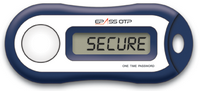 If you have received an OTP tag, you will need to register it by going to My Account and selecting Register OTP. Turn the OTP tag over (LCD screen down) and enter the barcode from the white sticker into the barcode field. •If the barcode starts with a “1” then under type of OTP device, select EPASS or c100 OTP tag if it isn't already the default selection. •If the barcode starts with a “2” then select the c200 time-based OTP tag option instead. 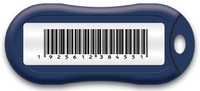 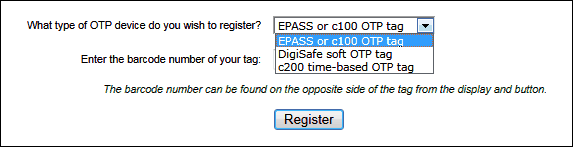 Now enter the barcode from the white sticker into the barcode field. Make sure you include all 13 digits. Please ensure you enter the numbers correctly as they will not be displayed on the screen. Click Register. You will see a message stating that "the specified OTP tag has been assigned to you". If you have previously registered an OTP tag, you will be informed of the fact if you click on the Register OTP link. However, if you need to register a new OTP tag to replace the existing one, you will be able to do so. 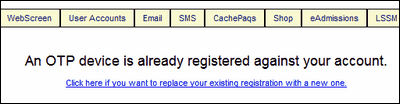 Please note that it is not possible to transfer tags between different users as this adversely affects the ability to have an accurate audit trail.
Moving from physical tag to Soft OTP If you currently use a physical OTP tag and wish to switch to the digital Soft OTP version, please use your existing tag to log in to the USO support site using the code generated by your tag. Select My Account >> Register OTP. The page will show that you already have a registered tag. Click on the link to change to a Soft OTP. 
You will then need to select Soft OTP tag from the menu. This will present you with a QR code you can scan into the Google authenticator (or similar) app on your smartphone. Please follow the process outlined above under the heading "Adding the Soft OTP to your app".
For an in-depth explanation of the Soft OTP registration process please follow the process under "Adding Soft OTP to your app" in Section 1, above.
Once you've switched to the Soft OTP version you will not be able to use the physical tag again and will no longer require it. |
Soft OTP The next time you log into the support site or another OTP enabled resource, you will be asked to enter your OTP code as well as your usual username and password. Open your authenticator app and enter the code it gives you. A code expires every 30 seconds. If you are unable to enter the code before a new one appears, please delete any digits already entered and type in the new code instead. Using Soft OTP on multiple devices There is no limit to the number of devices on which second factor authentication apps can be used. A single user may have more than one device (ie a mobile phone and a tablet) enabled for OTP. It is encouraged to have an Authenticator app on multiple devices in case one of the devices breaks down or you change to a new phone. Having an Authenticator app installed on multiple devices ensures you will always be able to gain access to the required resources. If you do change to a new mobile phone and ONLY have Soft OTP on that one device, you will need help from the LGfL Support Desk to re-register your Soft OTP on the new device. In such a case you will temporarily be unable to gain access to any OTP enabled resources and a Nominated Contact will need to raise a support case on your behalf. If you have Soft OTP on multiple devices and you change to a new mobile phone or replace one of your other devices, you will be able to re-register your Soft OTP on the new device yourself. Simply use the OTP code produced on one of the devices to log into the USO Support Site, go to My Account >> Register OTP. A QR code will be available to scan onto your new device.
Please note that if you delete the Soft OTP instance from one or all of your Authenticator apps, that does not remove the requirement for OTP second factor authentication. You will still be asked for an OTP code but would find that you are unable to generate it. Once you have registered to use OTP in any format, you will be committed to using it for the future.
Physical OTP The next time you log into the support site or another OTP enabled resource, you will be asked to enter your OTP code as well as your usual username and password. Hold the OTP tag so the screen faces up and press the button to the left of it. The 6 digit code displayed is the password you need to enter. It is displayed on the screen for only 10 seconds. If you are unable to type in the code before it disappears, wait a few seconds then press the button again to generate a new code. You will need to delete anything you may have already typed in and enter the new code in full. |
See also:
