The Email page found under My Account allows you to select what is used as your "from" email address and to enable or disable spam digests.
This page in the support site is accessible to all members of staff.
Spam digests
Users of LGfL StaffMail
All email is filtered by MailProtect software. This results in some emails sent to each address being classified as spam and not delivered to the intended recipient.
Such emails are logged and are available to view in the MailProtect website.
To ensure that you receive reports of all emails trapped in the spam filter, you must opt in to receiving spam digests.
A spam digest will arrive every 24 hours (if there is anything to report) and will list all emails that have been blocked. These can then be released and other actions towards allowing or blocking them in future can be taken.
You will be able to see a spam report for each of your registered email addresses, including aliases and any shared mailboxes of which you are the "owner".
Please be aware that if Spam digests are not enabled, should any of your legitimate emails be trapped by the spam filter, you will have no way of knowing about it unless you regularly check the MailProtect website (https://mailprotect.lgfl.org.uk) of your own accord.
To enable spam digests, click the Opt in button under the Email settings heading.
To opt out after having opted in, simply click the same button which will, at that point, read Opt out.
If enabled, spam digests will be received for all accounts with which you are associated. This includes any shared mailboxes of which you are the "owner". The spam digest for all mailboxes will be consolidated into a single report and will be received only on days when there are items in the spam filter.

Users of other mail systems
Regular users
Inbound mail for schools in LGfL using their own mail systems is also filtered by MailProtect. However, if users in such schools wish to enable spam reports for themselves, they can only do so by sending an email to Wavenet Education and not via the support site.
To enable spam digests for an individual user, that user must email digests@atomwide.com and enter the following in the subject line of the email: Enable spam digests.
Digests will then be sent to the requesting individual and they can release blocked emails from these.
To disable spam digests if enabled, the user must email digests@atomwide.com and enter the following in the subject line of the email: Disable spam digests.
Regular users do not have the ability to log in to the MailProtect website.
Mail administrators
In addition to the functionality described above, users who have the Mail Domain Administrator permission granted to their USO account can access the MailProtect website at https://mailprotect.lgfl.org.uk.
This will allow them to see all mail for their domain and to release mail on behalf of other users.
However, the only usable option in the MailProtect website is the ability to view all messages for your domain.
From addresses
If you have an alias, or several, for your LGfL StaffMail account, you can also select whether you would like to use an alias (and which alias you would like) as the From address. The From address is what will be shown to the people to whom you send emails.
(Only Nominated Contacts with LGfL mail domain administrator rights have the ability to create new aliases.)
Click the radio button to select the address of your choice.
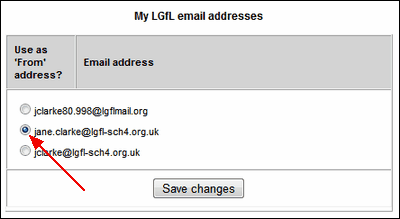
Please note that only one alias can function as a From address, even if you have multiple aliases configured.
Once you've selected an address click Save changes.
Email client configuration
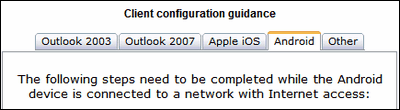
The right-hand side of this page contains information regarding setting up StaffMail to work with Outlook and several other mail clients.
Please check the information available here to configure your settings.