If you attempt to log in using the OTP code and fail, this may be because the support site and tag have become out of sync.
The first thing to do is try to resynchronise your tag.
You can choose to do it after the first or second attempt by clicking on the link to Resynchronise below the red error message.
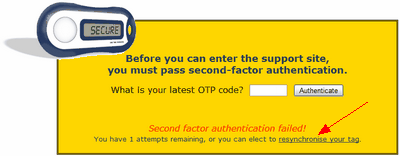
If you experience a third failed attempt you will see an Access Denied message.

You will then need to click the Back button in your browser to return to the previous screen and click on the link to Resynchronise below the red error message.
Enter the barcode of your tag in the barcode field. The numbers will not be displayed so please ensure you enter the number carefully.
(Please note if the numbers on the barcode have worn away and become hard to read you can use the Email a reminder to me link, which will send you an email containing your tag's barcode.)
In the following two fields, enter two new different codes generated by pressing the button on the OTP tag.
To generate two different codes:
1. Press the button once to get a code and enter it in the Latest OTP code field.
2. Wait about 10 seconds
3. Press the button again to get another code and enter the second code into the Next OTP code field.
(Please note that pressing the button again too soon will result in the same code being displayed so do wait at least 10 seconds after generating the first code.)
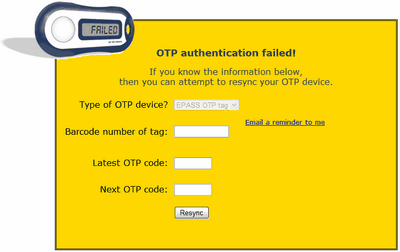
Click Resync. This will resynchronise the tag and log you into the site. (Please note this will only work if the original problem was the tag becoming out of sync.)
 If going through this process still fails to log you in there could be a different type of problem and your OTP tag may need to be replaced. Please contact a colleague who is a Nominated Contact to find out if there are any spare OTP tags available. If not, a new tag will need to be purchased and a case raised so the tag can be transferred.
