To view details on the outcome of the latest AutoUpdate data export and match or review any accounts that have been queried as a result, go to User Accounts and select Whole School Bulk Results.
If you are associated to more than one school by default, you will be shown the list produced via the List when a schools last had a file processed. The file names state which school the files have come from. Information in columns with linked (ie underlined) headings can be viewed in ascending or descending order by clicking on the heading.
However, if you are associated with one school only you will be taken directly to the List pupils that have not been matched page for your school.
The default choice List files that have been processed will show the exports processed in date/time order for the previous seven days.
If you choose different dates, you will need to click Refresh to the right of the dates to re-run the search.
The Help button in the centre of the screen explains how the .csv files are structured, how the fields are defined and how the batch process works to match exported data. It should be read in addition to this user guide.
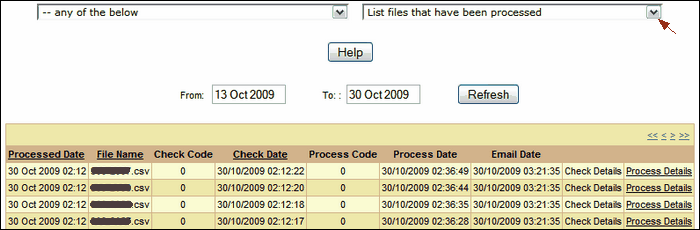
Selecting Whole School Bulk Results automatically produces a list of the files that have been received and processed, in descending date order under the first Processed Date column heading.
The summary also shows the File Name which should be in the form DFEcode.csv. The Check Code column shows the error code from the process that checks the csv file format and content. Any number other than zero indicates an error and means the file has failed that check. In this case, the Check Details column will provide a link to view the csv file error(s). If there are no errors, there will be no links in the Check Details column.
The Check Date refers to the date and time the exported file was checked by the AutoUpdate process.
The Process Code column shows the error code generated by the process of matching the csv file data against the user database.
The Process Details link allows you to view the detailed log records that constitute the AutoUpdate matching processes and their outcomes.
The Process Date states the date and time the file processing was completed.
The Email Date refers to the time an automatic email was sent out.
An email is sent to the school's Nominated Contacts if that school's data has been exported and processed for the first time. Nominated Contacts also receive an email every time the AutoUpdate process discovers any unmatched accounts. A link in the email leads to the relevant page in the support site.
To view details of all the AutoUpdate processes, click on the Process Details link to the right of the relevant file.

In the Message column of process details you will be able to see a step by step log of what happened during the AutoUpdate. All process codes should be 0. Any other number indicates an error.
See also:
List when a school last had a file processed
Email grace period configuration
List pupils that have not been matched
List pupils who were created as part of the process
List pupils who were transferred as part of the process
List pupils who were unallocated as part of the process
List staff that have not been matched
List staff who were created as part of the process
List staff who were transferred as part of the process
List staff who were unallocated as part of the process
