To view staff whose accounts are no longer associated with your school as a result of the latest AutoUpdate, select the option to List staff who were unallocated as part of the process.
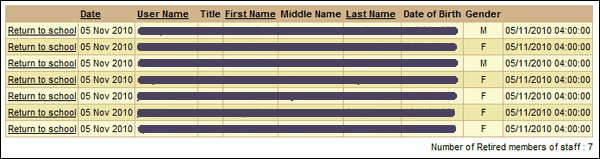
The Number of Retired members of staff in the lower right corner lets you know how many accounts were unallocated and not that those individuals have actually retired.
If you find that a staff member has become wrongly unallocated you can re-associate them with the school by clicking on Return to school to the left of their username. The single action will restore the person's association with your school.
 However, unless you make a change to your MIS as well, the person will become unallocated again the next time a file from AutoUpdate is processed.
See also:
List when a school last had a file processed
Email grace period configuration
List pupils that have not been matched
List pupils who were created as part of the process
List pupils who were transferred as part of the process
List pupils who were unallocated as part of the process
List staff that have not been matched
List staff who were created as part of the process
List staff who were transferred as part of the process
