Select the List staff that have not been matched option to see the names of any staff members whose accounts did not match correctly with USO data during the latest AutoUpdate overnight process.
If all accounts matched there will be no results for this search.
Any results will be listed in a table which will allow you to select staff members individually and match them to an existing USO account or create a new account for them.
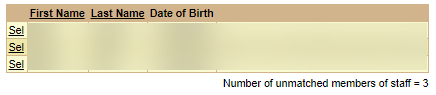
To see what options exist for matching the staff member, click on Sel to the left of their name.
You will be presented with a list of possible options.
When several potential matches with the same name exist, the only way to distinguish between them is the date of birth. However, possible results may show matches based on the following:
First name, last name and date of birth
First name and last name only
Last name and date of birth
Other staff accounts with no date of birth
Based on these matches, you will need to decide if any are indeed the same person or if they are different users.
If no relevant matches are displayed
If no relevant match exists click Create New USO Account at the top of the screen. this will create a new USO account for the person listed at the top of the screen.
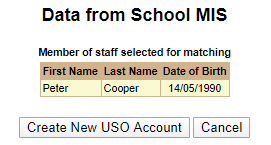
In this example it would create a new account for Peter Cooper who was recently added to the school's MIS.
If a relevant match is displayed
If one of the possible matches meets all criteria click Sel to the left of the matching account. The selected row will turn purple and the buttons along the bottom of the screen will become available.
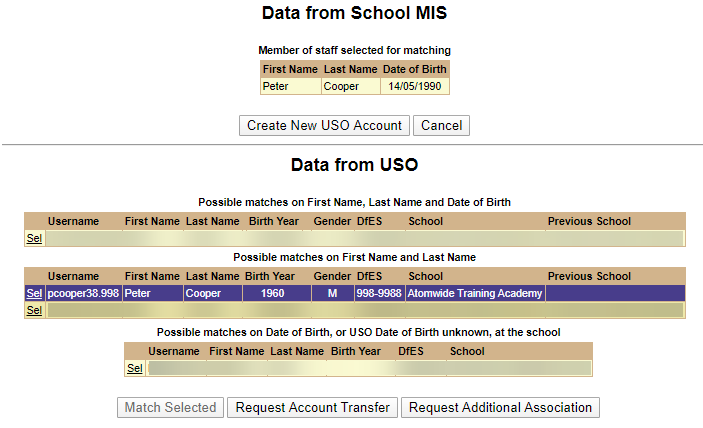
If the account is already at your school and it just requires matching to the export from your MIS the Match Selected button will become available.
Pressing this will not create a new account for this person or move an account, it will simply link it. This means when the member of staff's record changes in your MIS, it will update on the account automatically. Changes could include a name changing or the member of staff leaving the school.
If you need to transfer the member of staff from a previous school or from the Unallocated pool click on Request Account Transfer.
If the member of staff will be working for two or more schools simultaneously and needs to be added to your school click Request Additional Association.
Confirming an account transfer or association request
If you attempt to transfer or associate an account that is currently linked to another school a pop-up will display when you click on the Request buttons. This will be similar to the one below.
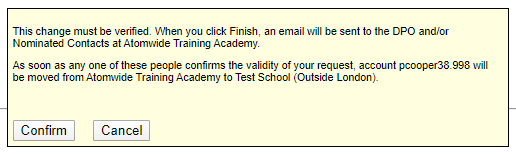
Once confirmed an email will be sent to the users described in the pop-up at the school that account is currently at to approve the request. Within this email it will contain a link that once clicked on will display a page similar to the following. If no response is received, this request will expire after 30 days or if it's canceled.

If the request is approved it will immediately move or associate the account as originally requested. An email will also be sent to the school that requested the move to confirm the request has been approved.
If the request is denied it will not move the account. An email will be sent to the school that requested the move to confirm the request has been denied. The school that requested the move can then create a new account for the user or attempt another transfer request.
Canceling a request
If a response to a request is not received in a timely manner or you would like to cancel the request, simply visit the page and you should see a Cancel Request option. Once pressed it will cancel the request and email the school the account is currently at to inform them that the request has been canceled.
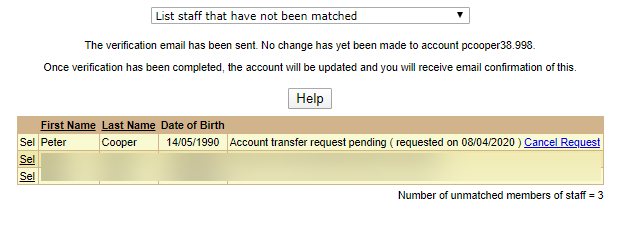
Log of requests
To see a log of the transfer requests in and out of your establishment, please see List user transfer requests.
See also:
List files that have been processed
List when a school last had a file processed
Email grace period configuration
List pupils that have not been matched
List pupils who were created as part of the process
List pupils who were transferred as part of the process
List pupils who were unallocated as part of the process
List staff who were created as part of the process
List staff who were transferred as part of the process
List staff who were unallocated as part of the process
