This section of the guide is out of date.
Freedom2Roam has now been released and replaces RAv3. Guidance on using Freedom2Roam is available here.
Remote Access functionality allows you to connect to your office resources from a computer outside your office network (your home computer, for example) by logging in through a web browser.
For information and guidance on how to set up and configure the Remote Access (RAv3) system, please go to this page found in the Service Desk chapter of this user guide.
Using remote access from a Windows PC
If the computer you are connecting from is running Microsoft Windows you MUST use Internet Explorer (version 6 or above).
The instructions on this page relate specifically to Internet Explorer as other browsers do not require additional configuration. If you are using Windows you should use Internet Explorer regardless of whether or not this is your preferred browser.
Add address to Safe Sites list in Internet Explorer
In order to log in via the web you will first need to add the web address to your browser's Trusted Sites. Please make sure that the address you have entered starts with https:// and NOT http://. You may have to change it to https manually.
Open Internet Explorer and enter the web address appropriate for your LA. These are as follows:
LGfL
TRUSTnet schools
https://rav3.trustnet.pro (please note if this address does not work then please try the one specified above.)
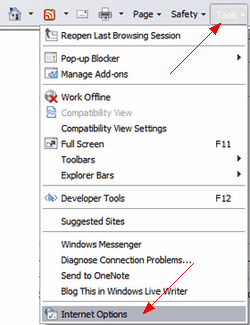
From the Tools menu, select Internet options.
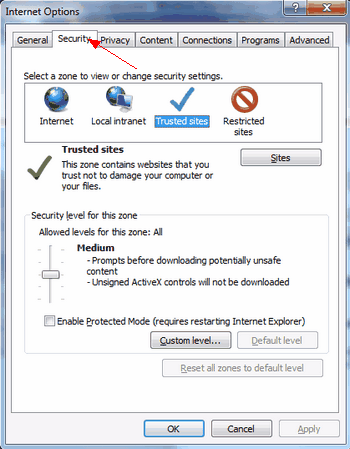
Then click on the Security tab. You will see a window like the one below. Click on the green tick mark symbol to select it.
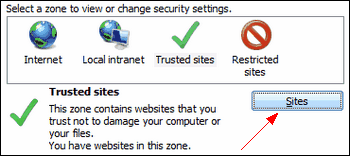
Then click on the Sites button to be able to add your site.
A new window will open. In the box it will show the address you originally entered into the browser's address bar. Click the Add button next to it.
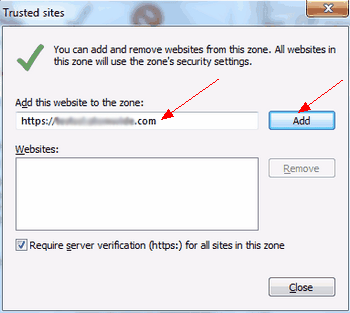
Once you've clicked Add the web address will appear in the box under Websites indicating that this site is now one of your trusted sites.
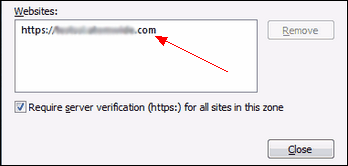
Once the site address appears in the lower box click Close. This will take you back to the Internet Options window where you will need to click OK.
You will now be able to access this site.

See also:
Accessing pre-configured locations
