This section of the guide is out of date.
Freedom2Roam has now been released and replaces RAv3. Guidance on using Freedom2Roam is available here.
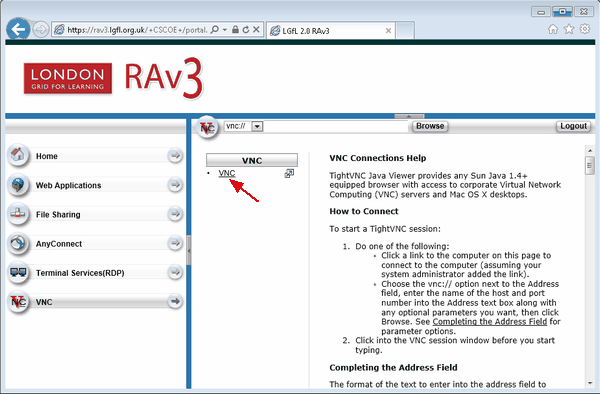
If VNC Connections have been configured for you then you will find a link to it under this heading.
Before this type of connection can be used, you will need to install a VNC application(server version) on the computer you will be connecting to (ie your school computer). A variety of VNC client applications are freely available on the internet. Your IT manager should be able to tell you which one is best for you.
The target computer based at your school must be switched on to be accessible remotely. The installed VNC application must also be running for a VNC connection to be made and a VNC password should also be set in the application.
Click on the available link under VNC Connections.
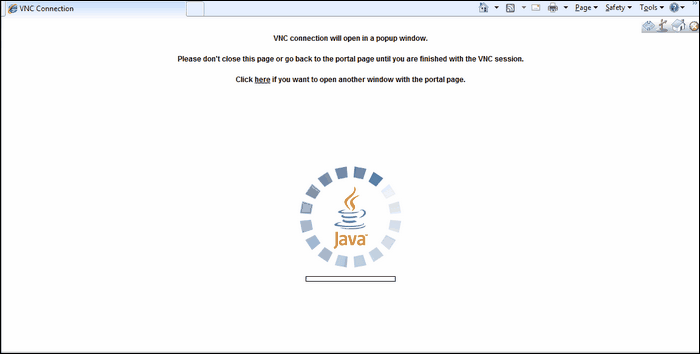
The browser window will change to look like the one below while the program launches.
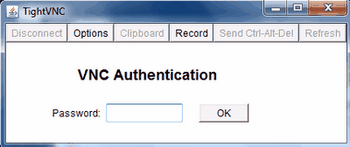
A pop-up window titled VNC authentication (shown below) may ask you to enter a password.
The password will only be required if the VNC client installed on your school computer has been configured to ask for it. If you have installed this application yourself you should know if you set it to ask for a password and if so, what password is needed. If your IT manager did this for you, you should have been told what password to use.
However, it is possible that a password is not required so you may not be asked for one at this stage.
Once you have entered a password (if required), you will see your desktop exactly as it would appear on your computer. You will also see the taskbar of your own computer below the window showing the remote desktop.
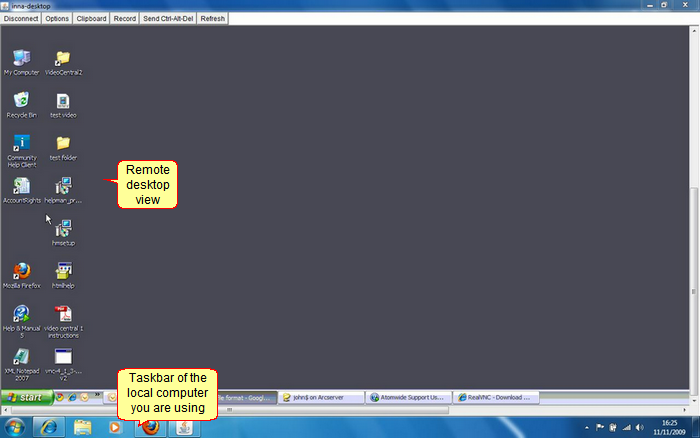
You can now work with your computer as you would normally.
You will notice an additional set of buttons in the top left part of the screen.

Use the Disconnect button when you are ready to end your session. Please note that if you leave your session inactive for a period of time you will be logged out automatically and will have to log in again.
The Record button will allow you to record the actions within your remote session to be played as a video clip. The recording will get saved as a .fbs file and you will need to download an additional application to play it. If you choose to experiment with this option, please be aware that any problems that result from it will not be supported by Wavenet Education.
The Send Ctrl-Alt-Del button may sometimes be needed if you need to log into your screen view.
The Refresh button will refresh your screen view if, for some reason, it does not update on its own after you have performed an action.
If you need to access something on your local hard disk, minimise the browser window and restore it again when needed.
When you have finished working you log off the remote session by going to the Start menu and selecting Log Off. This will terminate the connection. If you need to reconnect again later, you will be required to enter your remote site's secure address and log in as before.
See also:
