This section of the guide is out of date.
Freedom2Roam has now been released and replaces RAv3. Guidance on using Freedom2Roam is available here.
A Terminal Servers connection needs to be configured for you before you can use it to connect to your school computer.
Your target computer, based at your school, must be switched on to be accessible remotely via a Terminal Server/RDP connection. If your computer is off, you will not be able to connect.
Once you have logged in to the Remote Access interface, select the configured link to your computer located under the Terminal Servers button.
Click on the link below the Terminal Servers heading to initiate a connection to your computer.
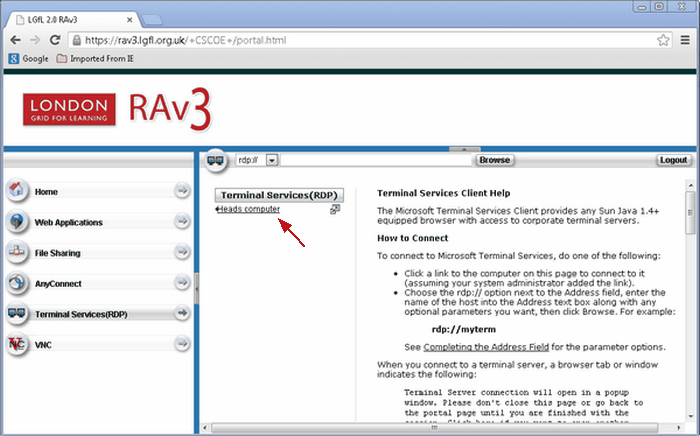
You should not see any security messages if your establishment's settings are correct. However, if you see a pop-up with a warning message, you can ignore this and click whatever is required to continue.
You should then be presented with what looks like your computer's login dialogue box within the browser window.
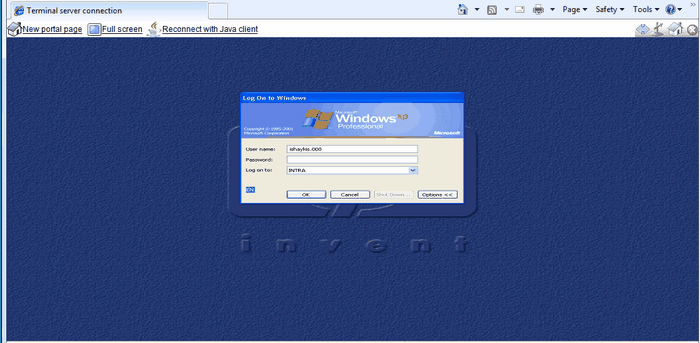
Enter your username and password. These should be the ones you would normally use to log in to your computer and not necessarily your USO credentials (unless they are the same). The username box may already contain your USO username. However, if this is not the name you use to log in to your computer, you will need to delete it and enter your correct username.
The browser window will then show your school computer's desktop, which will appear out of proportion.
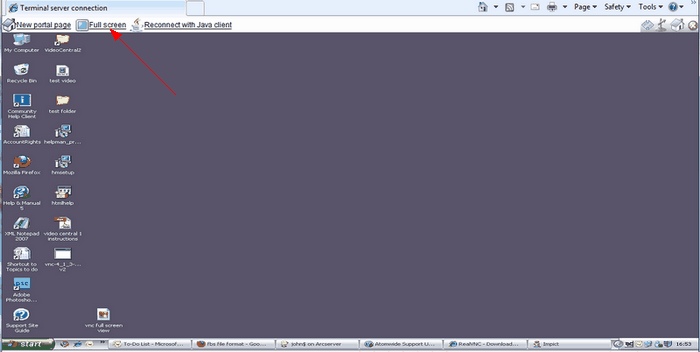
To get a normally proportioned view of the screen, click on Full screen link in the top left part of the browser window.
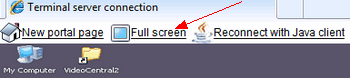
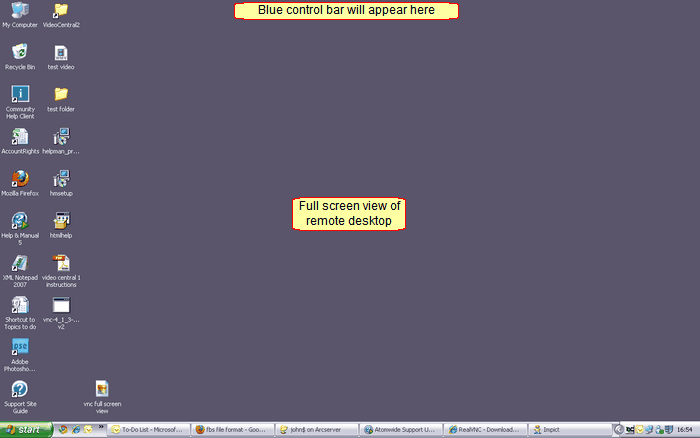
Your remote desktop should now be taking up your entire screen. Your computer's own task bar and everything on the desktop will disappear from view. However, you are still working in a browser window and your own desktop is behind the full screen view of your remote desktop.
A blue control bar will appear centred at the top of the screen. It will show your computer's IP address and three controls (the same type of controls that are normally seen in the top right corner of any window). You will be able minimise the browser window to return to your computer's actual desktop, change the full screen window to the previous stretched view or close the browser window.
If, while using a remote connection, you need to access something on your local hard disk, minimise the remote connection browser window and restore it again when needed.
When you have finished working you log off the remote session by going to the Start menu and selecting Log Off. This will terminate the connection. If you need to reconnect again later, you will be required to log in as before.
See also:
