This section of the guide is out of date.
Freedom2Roam has now been released and replaces RAv3. Guidance on using Freedom2Roam is available here.
Clicking on any of the tabs on the left will list only the locations associated with that tab in the central window. In the image below, the Browse Networks button results in the link to the shared drive being displayed.
Additional instructions on using a particular type of connection are also displayed in the right part of the screen when a tab is selected.
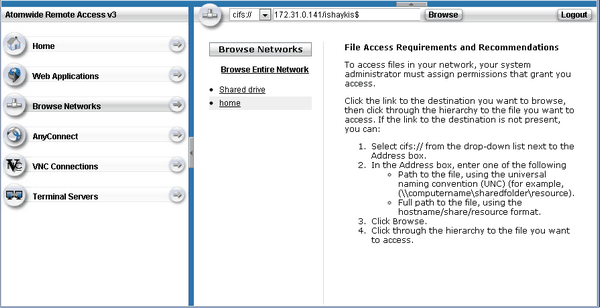
Clicking on a link under the Browse Networks heading (eg the Shared drive link above) may require that you to enter your login credentials again before accessing the location.
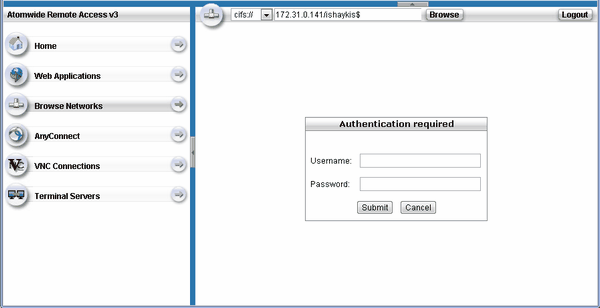
The login credentials required will be those that you use to log in to your school's network. Your IT Manager should be able to help if you are not sure what credentials you should be using.
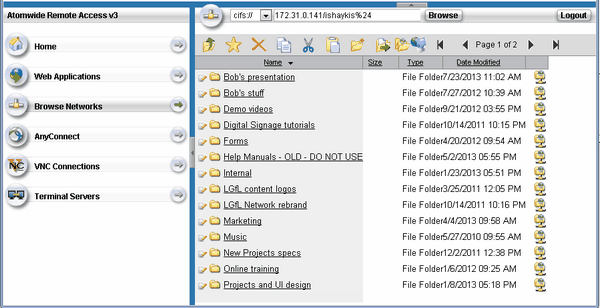
Once you have been allowed to enter the location you will see a list of all the folders and files you can access. It is possible that you will be able to access fewer folders and files using remote access than you may be able to access from your office-based pc.
Once your accessible folders are listed, you can view their contents, upload and edit files. However, this is all done in a web-based interface so every document and folder is accessed via a link. Dragging and dropping files and folders is not possible.
To edit a document you can open it by clicking. After you've made changes you must save it by using the Save as option and saving it to a known location (eg: the desktop) on the computer you are using. Do NOT simply click Save or CTRL-S. Doing this will save the document in a hard-to-find location on your computer and complicate the process.
Then use the Upload facility to replace the original version of the file with the updated version that you saved locally. Uploading a file with exactly the same filename as the original will allow you to Overwrite and replace the original version.
To return to an overview of all your bookmarks, click on the Home tab in the top left corner to see all the links displayed in the main window.
If you have any web links configured, such as a staff intranet, you would see a shortcut to it under Web Applications. You might be asked to log in again with the usual username and password you would use to access that site.
See also:
