This section of the guide is out of date.
Freedom2Roam has now been released and replaces RAv3. Guidance on configuring Freedom2Roam is available here.
After creating a group and adding some users to it, you will need to set the level of authentication (ie how stringent the security requirements are when logging in) required for that group.
You can then amend these settings at any time (and as many times as necessary) after a group has been created.
To define a group's security settings click Select to the left of the group's name.
The following will then appear at the bottom of the web page (below the DNS settings box) when the Users tab is selected.
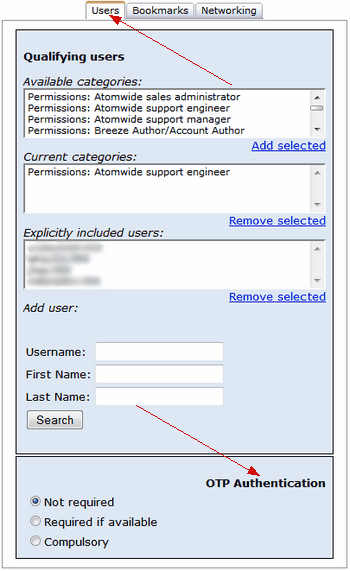
Scroll down to the section titled OTP Authentication.
Click on one of the radio buttons to select the desired option.
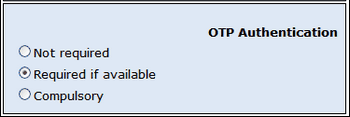
Definition of OTP Authentication options:
Not required - this is the least stringent type of login. Users will be allowed to log in to your system with only their USO username and password.
Required if available - this is a more secure login that will require those users who have a registered OTP tag to log in using the tag. Users who do not have a registered OTP tag but are members of this group will be able to log in with just a username and password.
 The word 'available' in the Required if available option means an OTP code will be required if the user has a registered OTP tag. If the user does not have the OTP tag available when trying to log in, the login attempt will be unsuccessful unless you provide an alternative option (see Group Priority section below).
Compulsory - this is the most stringent type of login requirement that will allow only those users who have a registered OTP tag to log in and access the specified resources. If a user who does not have an OTP tag is placed in a group where this option is selected, those users will be unable to log in.

Logging in to Remote Access with an OTP tag
Please note that users will need to be made aware of the required format for logging in with an OTP tag as there will be no additional prompt for an OTP code after the initial login screen.
To log in with an OTP code the password must be entered as MyPassword.xxxxxx (where xxx is the OTP code generated for that login and the password is the user's usual USO account password).
Access Log
It is possible for Nominated Contacts to see who from their school has attempted to log into RAV3.
The access logs are found at the bottom of the Remote Access resources page.
You can search through the logs by date range or use one of the provided search buttons.
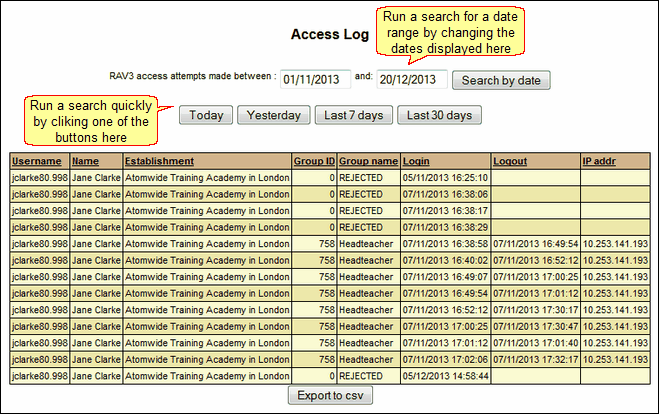
The results shown provide the following information:
Username - the username that was used during the log in attempt.
Name - the name of the person who attempted to log in (this will only be shown if the username was valid).
Establishment: the establishment the username is associated to. This will be the main association of the account and will only be shown if the username that was used is valid.
Group ID - this only shown if the log in attempt was successful, this relates to the ID of the group that the person has logged in to access.
Group name - this is only shown if the log in attempt was successful, shows the name of the group that the person has logged in to access.
Log in - the date and time of the log in attempt.
Logout - the date and time the log in session finished.
IP addr - when the log in attempt is successful the IP address of the machine being used to get the connection is shown.
All of this information can be exported to Excel by clicking the Export to CSV button.
See next:
See also:
