New AutoText service
The AutoText user interface has been re-designed and upgraded. The new service can be found at http://text.atomwide.com/. If your school has been migrated to the new service, you will need to use the new website.
Your school will be notified before we start the migration so you should know whether you have access to the new service or not. If you are still using the original service, the instructions found in this section will apply.
If you have not yet migrated but would like to see how the new service works you can access the user guide directly to get an idea of the new look and feel. Please access the user guide from this page.
Original AutoText service - user instructions
This service allows text messages to be sent to the mobile phones of staff users, or pupils' designated contacts or for users to be contacted by email.
 Please note that NO texts or emails are sent automatically. The use of this service requires an SMS sender to pro-actively perform a series of actions in order to send either texts or emails.
The link to the AutoText module is available to everyone but only authorised SMS senders whose LA or school subscribes to the service will be able to send text messages.
SMS Sender is a specific profile option allocated to a member of staff at a school or LA. Only Head teachers, can give someone the relevant permissions to become an SMS sender by editing the relevant user's profile. Alternatively, Head teachers can grant this permission via the Headteacher summary page found under My Account.
Ideally, users with the SMS sender profile option enabled should also have View secure MIS data enabled in their profiles. Without it, they will be able to see only a limited amount of information regarding the parent/guardian contacts (ie no contact names or phone numbers). Only LA Super or Power users can give someone the relevant permissions to View secure MIS data by editing the relevant user's profile.
Schools that subscribe to AutoText can also update their OpenCheck settings by text message as long as they have some message credits available.
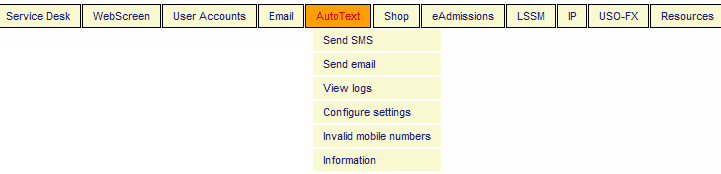
To send SMS or view texts your school has sent or received, select AutoText and then click the required link text.
- Configure settings (for LA level)
- Configure settings (for school level)
Alternatively, hover over the tab and make your selection from the dropdown menu.