The Invalid Mobile Numbers link under the AutoText tab allows you to produce reports that highlight pupils whose contacts have incorrect or non-existent mobile numbers or email addresses. You can then use these reports to obtain the correct information and update it in your MIS.
 The accuracy of the invalid contact information is dependent on the data exported from a school's MIS using AutoUpdate. Exporting MIS data is the only way to link pupil contacts' details to the Atomwide support site.
If you are an authorised SMS sender for more than one school, you will be able to select a school from the dropdown list on the right. Otherwise your school will be displayed.
When you arrive at the Invalid mobile numbers page you will see your LA, your school (or a dropdown list of schools if you have access to more than one) and a dropdown menu of the information it is possible to view.
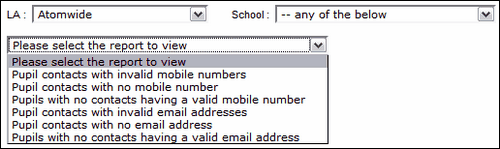
Selecting the first option Pupil contacts with invalid mobile numbers will generate a list displaying the Pupil's name, Year, Class, Mobile number of contact, the Relationship of the contact to the pupil, the Contact name and the Reason the phone number is considered invalid.
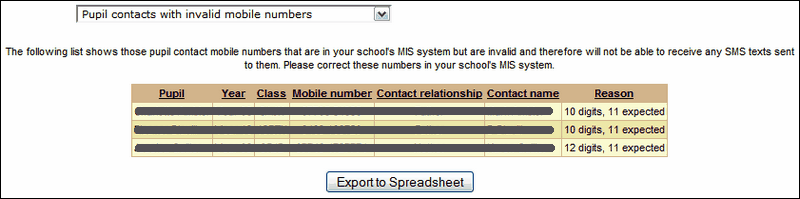
Please note that if the person using this report does not have the permission View secure MIS data they will NOT be able to see any fields other than the pupils' names and the reason the phone numbers are not valid. All the other fields will appear blank.
Invalid Numbers
•Numbers are considered invalid if they contain more than 11 digits (spaces not included).
•Numbers beginning with 00 and followed by a foreign country code are also not acceptable.
Acceptable Numbers
•Any UK mobile number submitted with or without spaces
•Numbers beginning with +44 and omitting the initial zero character
•Numbers beginning with 44 and omitting the initial zero character
Once a list has been generated you can export it to a spreadsheet if needed by clicking on Export to Spreadsheet and obtain contacts' details for these pupils. Contacts' details must be updated in the school's MIS and will then be exported to Atomwide in the next scheduled data export.
