If you are an authorised SMS sender, to send a text message select Send SMS under the AutoText module.
 Please note that NO texts or emails are sent automatically. The use of this service requires an SMS sender to pro-actively perform a series of actions in order to send either texts or emails.
If you are associated with several schools where you are an SMS sender, a dropdown list of schools will be visible. Otherwise, only one school will be displayed.
If you are an LA level user, you will be able to select any school within the authority.
Credit availability
The number of messages available to the selected school will be displayed across the centre of the screen in bold text.
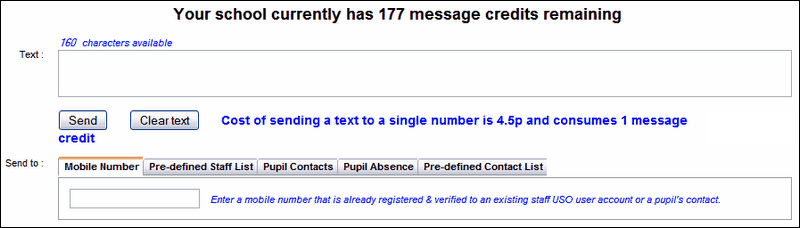
The cost of a single message will be displayed in bold blue text. If you select multiple recipients, the cost of sending the texts will be calculated automatically and displayed in bold blue text.
Low message credits
When your text credits fall below a certain amount but you are still in credit (150 message credits is the default setting but your LA may have specified a different amount), you will see a red warning message (see below). At this point you will continue to be able to send messages.

Sending messages when in negative credit
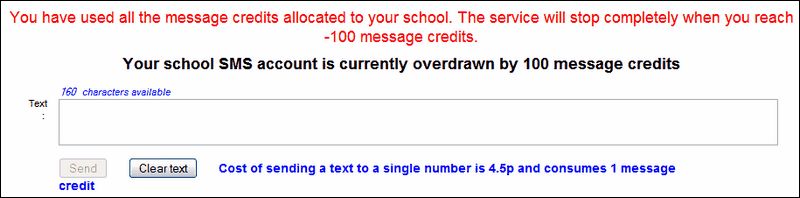
When your remaining credits fall to a negative number, you will continue to be able to send messages until you reach your credit limit. (The default limit is -100 but can be set to a different number if requested by the LA SMS Administrator.)
You will be alerted to this fact with a red warning message on the Send SMS page (image below).

An automated email is sent to the LA SMS Administrator when the point illustrated above is reached.
If the SMS Administrator has ticked a box on the AutoText > Configure Settings page the Head Teacher at the relevant school will also receive an automated email stating that the schools SMS account requires additional credits.
If this box is not ticked, only the SMS Administrator at the LA will receive a message.
Once you are in negative credits, you can continue to send messages that would take you to the limit for your school. If, as in the image above, you have 15 message remaining before reaching the -100 limit and you attempt to send 17 messages, the system will not allow any messages to be sent until you have purchased additional credits.

You will need to contact either your LA SMS Administrator or the Service Desk (depending on your LA arrangement) to request more credits.
No ability to send messages
Once you reach -100 (or your agreed limit), you will not be able to send any further messages until you obtain additional credits.
The Send button will be disabled (greyed out) when you view this page.
See next:
Send messages to a mobile number
Send messages to a pre-defined staff list
Send messages to pupil contacts
Send messages regarding pupil absence
Send messages to pre-defined pupil contact list
See also:
