To send texts to pre-defined groups of pupil contacts go to AutoText > Send messages. Select the Pre-defined Contact List tab in the Send to section of this screen.
 The amount of contacts' data you will be able to see will depend on your own MIS settings. You may be able to see all the data in the fields or you may see only the names of the pupils whose contacts you will be texting. To have full access to all contact information you need to have view secure MIS data permissions enabled in your USO account profile.
The ability to text pupil contacts is dependent on your school exporting MIS data to Atomwide using AutoUpdate and the groups being set correctly in your MIS.
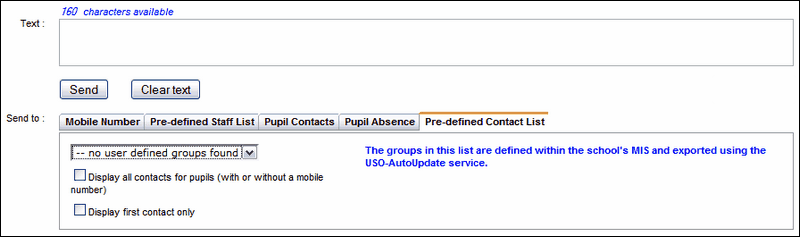
If any contact groups have been exported, you will be able to select the relevant one from the dropdown list.
Within a selected group, you can choose to see all contacts associated with each pupil by ticking the box or you can choose the show the main contact only.
Once the correct group has been chosen you can compose and send out a text message.
See also:
Send messages to a mobile number
Send messages to a pre-defined staff list
