To send a text to a predefined group of staff members, click on the Pre-defined Staff List tab in the Send to section.
Your LA will be displayed and greyed-out.
Send a message to a group of staff members
If you are associated with several schools where you are an SMS sender, a dropdown list of schools will be visible. Otherwise, only one school will be displayed.
The number of messages your school has available will be displayed across the centre of the screen in bold text.
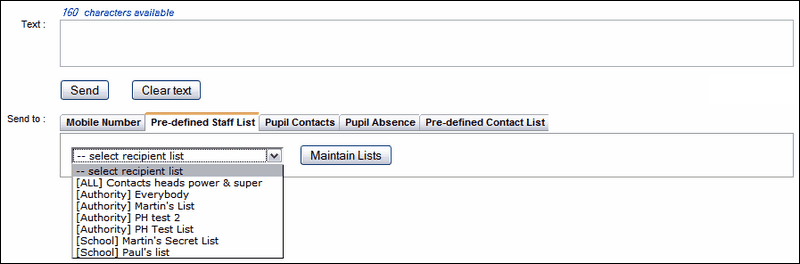
Select an existing group of users from the dropdown list. (In brackets, next to the name of the group, you can see what level user has created and shared this group.)
If no groups exist, you can create them, one at a time. For details see the create a new list chapter.
When you Select a group, its members will be displayed on the page. If you need to permanently add or delete members see Editing a list for instructions. If you would like to prevent certain members of this group from receiving a text un-tick the box next to their names.
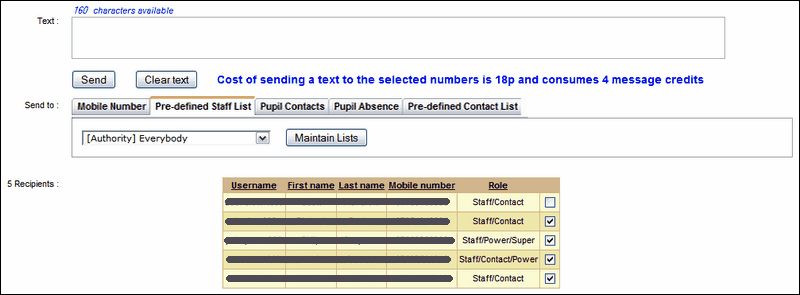
When you have selected a group, a message next to the Clear text button will inform you of the cost of the text message you are about to send (based on the number of members in the selected group).
The members of the recipient group are also listed. If you would like to proceed, type a message into the Text box and click Send.
See also:
