To send a text to a group of people not already in a specific list, you will need to Create a new group.
After clicking on the Pre-defined Staff List tab, click on Maintain Lists next to the dropdown menu.

On the next screen, click Add New List.

On the next screen you will need to enter a List Name and a brief Description. You can also set the Scope, which determines which other users will be able to make use of this list.

You can share a list within a school or make it visible to yourself only by making the scope Personal.
 Please note you cannot share a list with users at a higher level. For example, you can share a list across the LA if you are an LA-level user not a school-level user.
When you have entered these details click Save List.
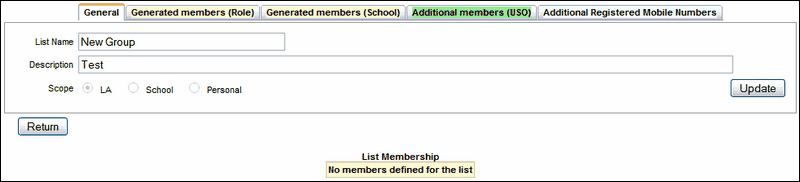
You will now see various tabs above the details you have entered and can proceed with adding members to this list.
You can also change the name and description if you wish and save the changes by clicking Update.
To learn how to add members see the instructions for each:
