You can add individual members by selecting the Additional Member (USO) tab and searching for users.
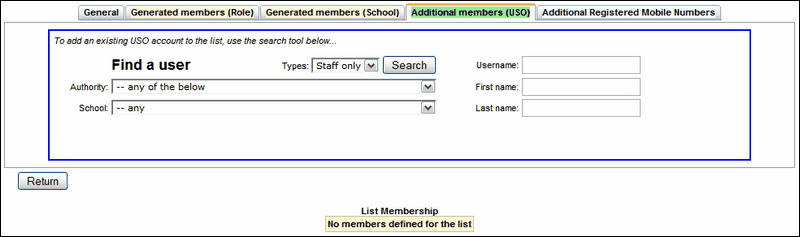
To find an individual user you can search for them by their username, first name, last name, school or any combination of these. Select your criteria and click Search.
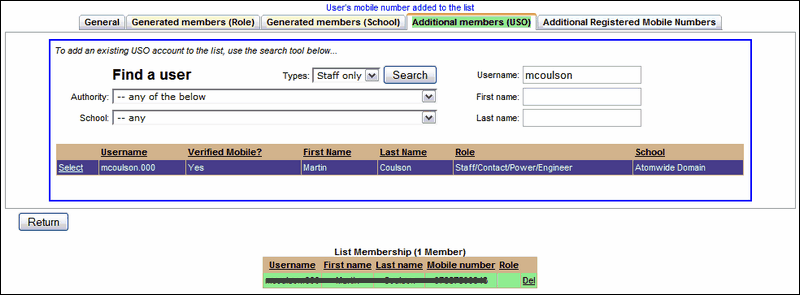
The search results will be displayed in a table in the lower section of the blue-bordered box. Click Select to the left of the user's name.
The row containing the user you selected will turn purple and the user's name will appear under List Membership in a green-coloured row (to correspond to the colour of the tab).
(Users that have been added individually using this process can also be individually deleted from the group by clicking Delete to the right of their details.)
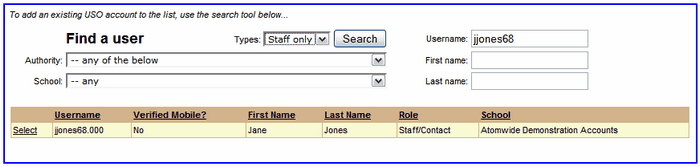
 Please note that recipients must have a verified mobile number in order to receive text messages.
Click Return to save your selection and go back to the General screen or choose another tab to add other members.
The table under the List Membership heading will show an updated list at every stage.


See also:
