To add a member using their mobile phone number, select the Additional Registered Mobile Numbers tab.
The mobile number you enter must already be registered and verified.
All fields are mandatory so you must enter a first name, last name and mobile number. Click Add number.
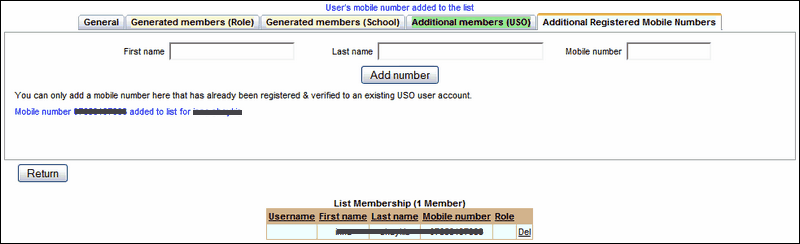
You will see a blue message above the tabs says the user's mobile has been added. You will also see a blue message in the grey box, showing the mobile number and the user's name you've entered.
The user's details will also be displayed under List Membership and will appear in a pale blue-coloured row (to correspond to the colour of the tab).
Click Return to save these details and return to the General screen or continue adding members using the other tabs.
The table under the List Membership heading will show an updated list at every stage.
See also:
