To add members to a group based on their role select the Generated Members (Role) tab.
(The tab is yellow, so the rows the new members appear in will be the same colour as the tab.)
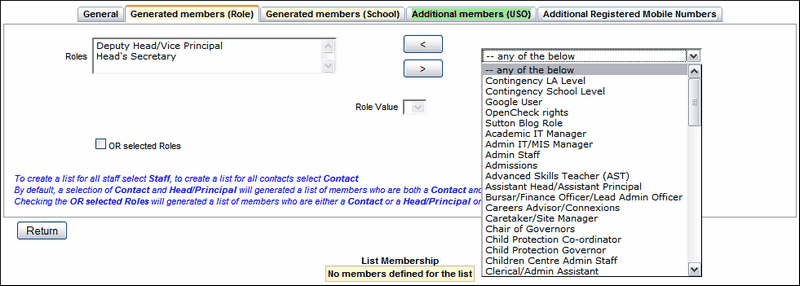
Use the dropdown list to add roles one at a time. Highlight a role, then click on the left-pointing arrow to add it to your search criteria. It will then appear in the Roles box on the left.
To delete a role that has been added, select it in the Roles box, then click on the right-pointing arrow to remove it.
When you have chosen the relevant staff by role, you must tick the box below Roles that reads "OR selected roles". This will allow you to find staff who are in any of those roles rather than members of staff who fall into ALL the categories.
The act of adding and removing roles automatically runs a search and produces results.
If you have finished adding users to your group, click Return. This will save your choices and take you back to the General screen.
If you need to continue adding members to the group using one of the other methods, click the next relevant tab and continue.
The box titled Role Value is not relevant to most users and you are likely to find that it is empty. If this is the case you can simply ignore it.
 Please note that when you add members by Role, you will not be able to delete them from the group individually, you would have to delete everyone with that role.
The table under the List Membership heading will show an updated list at every stage.
See also:
