If you need to edit an existing list click on Maintain Lists.
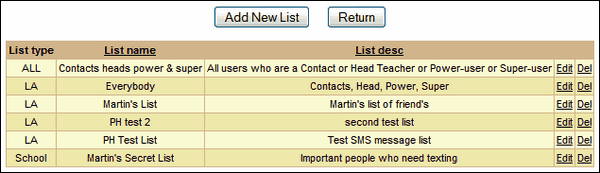
All existing lists (if any) will be shown and you will be able to Edit or Delete some of them. However, you can only do this with lists created by users at the same level as you. (For example, if the list type says "school" you can edit it if you are school staff or an LA user. However, if a list type says "LEA" you can only edit it if you are an LA user.)
To edit a list you have permission to access, click Edit in the right side of the table, next to the name of the relevant list.
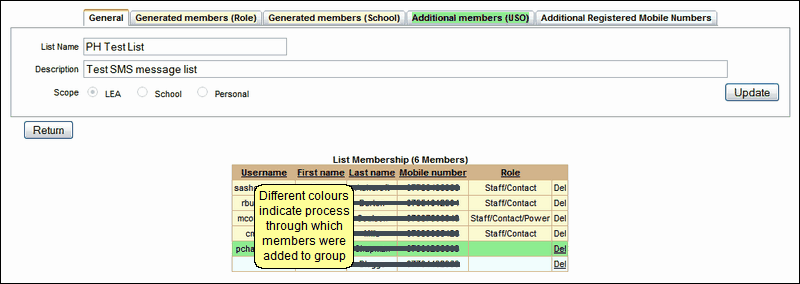
You will be able to change the name of this group in the List Name field and change the Description field if necessary. You cannot change the Scope of an existing group.
To delete a member of the group, click on Delete to the right of the person's details.
 If the Delete button is not active, this is because these users have been added by their Role and can only be removed by removing that role from the search criteria. See adding members by Role.
The row colour of each group member indicates the process by which that member was added (the colours correspond to the tabs above the table).
You can Add new members to the group in a number of ways - see instructions via the links below.
Add members by Mobile phone number
When you have finished editing a group's membership, click Return to go back to the full list of groups. From this screen, click Return again to go back to the main SMS page.
You can then select the group you have edited and proceed with sending the text message.
