This page should be used to see a history of messages sent. It will provide information on when messages were sent and to whom, and will state whether they've been received. The page will also show any replies that were sent to the school via text message.
When you enter the page, the default settings will show Sent messages Today for your school (or for all schools in the LA if your are an LA-level user).
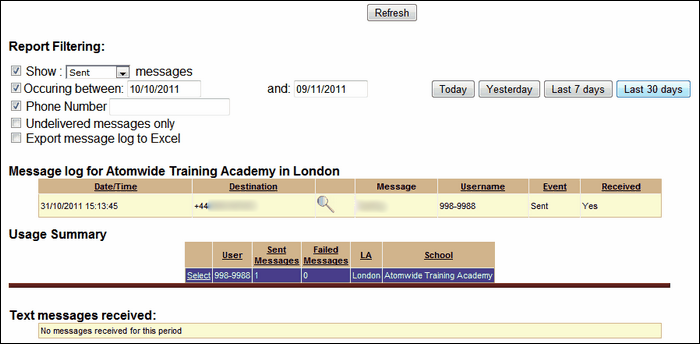
School level view
School staff accessing this page will be able to see a history of messages sent either for a date range of your choice or preselected time-frames such as the last 7 days or the last 30 days.
Under the Message log for heading, you can see which messages were sent and to whom and whether they were received. Please note that Received means that it reached the intended recipient's phone, not necessarily that they have read it.
The Usage summary will show how many messages the school has sent within the selected time-frame.
The Text Messages Received section will show any replies that were sent to the school in response to a text message from the system.
LA level view
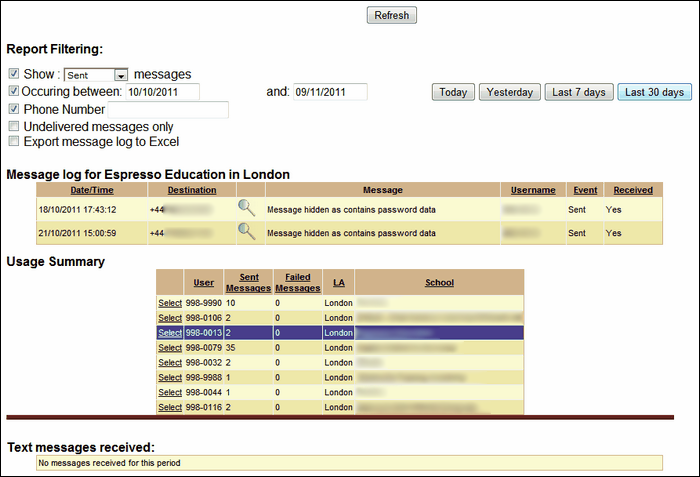
LA level users will be able to see an activity log for all the schools in the LA which use the AutoText system.
Under the Message log for heading, you can see the messages sent by the school selected (ie highlighted in blue) in the Usage Summary section. Please note that a Yes in the Received column means that a message reached the intended recipient's phone, not necessarily that they have read it.
The Usage summary will show all the schools in the LA using AutoText and a summary of how many messages each school has sent within the selected time-frame.
The Text Messages Received section will show any replies that were sent to the selected school in response to a text message from the system.
An explanation of available fields
You can filter the reports by message status, date, phone number or undelivered messages.
To view by status, make sure the Show tick box is on (it is usually on by default with the default selection set to Sent) and select to view messages that were sent, queued, failed or all of the above.
To filter sent messages by date, select the date in the Occurring between field. Enter a start and end date by typing it in the box or choose from the date picker which pops up when you click in either date box. Alternatively, you can simply view a log of messages from Today (whichever day it is), Yesterday, the Last 7 days or the Last 30 days.
If you want to check whether a text has been sent to a particular number, enter it in the Phone Number field.
If you choose any of the available options or select dates using the date picker, the page content will update automatically. If you enter any thing in any of the fields manually, you will need to the Refresh button.
The Message log will contain detailed information on the following:
Date/Time: Displays when the message was sent.
Destination: The mobile number that the text was sent to.
Magnifying Glass symbol: Will produce a pop-up showing the name of the recipient if registered to a USO account or will state that the number is not registered to a user's USO account.
Message: Will display the full text of the sent message.
Username: The user id code of the school.
Event: States the outcome of the system's attempt to send a message. If a message was not sent on the first attempt, the outcome of every attempt will be recorded as a separate event.
Received: Shows whether the sent message was received by the mobile number it was sent to.
The Usage Summary will show the total messages sent by each school on the date(s) selected.
