If you are an authorised SMS sender, to send an email message select Send email under the AutoText module.
 Please note that NO texts or emails are sent automatically. The use of this service requires an SMS sender to pro-actively perform a series of actions in order to send either texts or emails.
Your LA will be displayed and greyed-out. If you are an LA level user, you will be able to select any school within the Authority.
If you are associated with several schools where you are an SMS sender, a dropdown list of schools will be visible. Otherwise, only one school will be displayed.
When emails are sent out, a blue message at the top of the page will state how many messages have been sent.


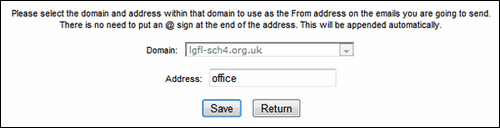


Sending emails
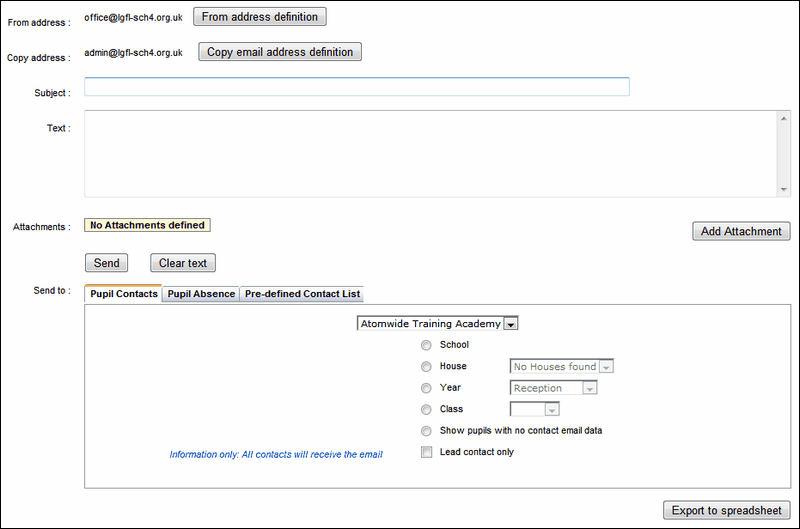
The number of messages available to the selected school will be displayed across the centre of the screen in bold text. The cost of sending an email will be calculated based on the number of recipients and the information will be displayed in bold text.
Enter a subject and the text of your message in the relevant fields.
Use the Add Attachment button to find and attach any file(s) that need to be sent with the email.
Select the Pupil Contacts to whom the message should be sent by choosing the Whole school option, a year group or a class group. Then send the message.
See next:
Send email regarding pupil absence
Send email to a predefined contact list
See also:
Contacts wishing to opt out of receiving email notifications
