To send texts to pupil contacts go to AutoText then Send email. You will be presented with the Pupil Contacts tab in the Send to section of this screen.
 The amount of contacts' data you will be able to see will depend on your own MIS settings. You may be able to see all the data in the fields or you may see only the names of the pupils whose contacts you will be texting. This is determined by whether or not you have the permission to view secure MIS data set in your USO account profile.
The ability to email pupil contacts is dependent on your school exporting MIS data to Atomwide using AutoUpdate.
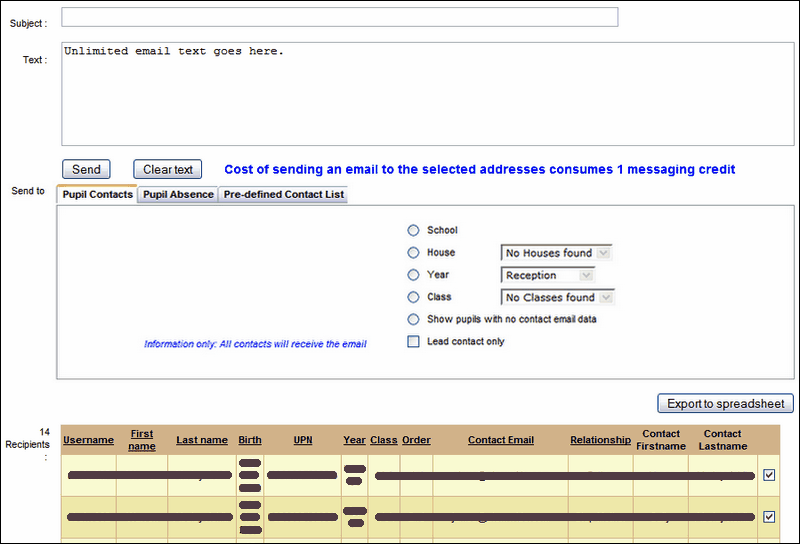
This functionality enables you to send texts to defined groups of pupil contacts. Click on the radio button next to School to email all pupil contacts, if your school uses the House system you can select a House or select an entire year or a particular class.
Emails can only be sent to valid email addresses (ie those that take the correct email format though it is still possible for the addresses themselves to be wrong). Each pupil can have up to six contacts so if you do not wish to email them all, you can filter the list to show the Lead contact only by selecting that tick box.
If sending an email to all pupil contacts, any duplicate email addresses will automatically be ignored so that a single email address receives only one email.
Once a recipient group is chosen, a list of all the contacts' details will be generated and text to the left of the table informs you how many people there are in the list. The cost of sending the emails will be calculated based on the number of recipients and will appear in the centre of the screen in bold blue text.
To remove individual contacts from the send list, untick the box to the right of their names. The row will still remain visible but any contact who is not ticked will not be sent a message. Alternatively, use the Deselect All button at the bottom of the screen and then tick only the desired recipients.
See also:
Send email regarding pupil absence
Send email to a predefined contact list
Contacts wishing to opt out of receiving email notifications
