Pre-requisites
 A school must be exporting data via USO-AutoUpdate AND have the Atomwide Attendance report enabled in the AutoUpdate settings page of the support site. The school must also be exporting attendance data daily in order to be able to use this functionality.
Attendance data exports should be scheduled to run at a specified time or times each day, after the day's (or morning and afternoon) attendance has been entered into the MIS.
This export is independent of the full MIS data exports which generally run overnight.
A school can choose to be notified after the latest attendance export has been processed and is ready to use for sending absence notifications.
The person responsible for sending absence notifications (ie with SMS Sender USO profile) can have an additional profile setting added to their USO account. The Role of Attendance Officer can be added to the person's account which will ensure that the Attendance Officer receives an automated email informing them when the exported attendance data has been processed and is ready for use.
Accessing absence data
Once data has been processed, the SMS Sender/Attendance Officer can find out if there are any pupils absent that day by going to AutoText > Send messages then selecting the Pupil Attendance tab in the Send to box.
If there are no absences on a given day, the message you see will inform you of this.

The Pupil Absence tab can only be used to to find absent pupils and email their contacts on the day on which they are absent. You cannot use this to inform contacts of absence retrospectively. If you need to inform contacts of a previous absence or another issue you will need to find them via other methods. See sending text messages to pupil contacts.
If there are pupils absent that day, you will see a list of the pupils' names. Whether you see their contacts' names and details depends on your MIS settings. Certain year groups can be excluded from the results via the options selected on the Configure settings page. The absence alerts opt-out settings (on the right) can be changed on this page without affecting the default settings. It will merely produced a different set of results with either more or fewer names depending on which years are included or excluded. The results will change as soon as you click Update Absence List.
If absent pupils are found, their names and their primary contacts' names will be shown in the results and you will be able to send the contacts a text message.
Pre-defined message text will appear in the text box. The words in brackets will be replaced by the names of contacts when the message is sent. If you wish to change the message text you are free to do so. However, the words in brackets must not be changed and the brackets must not be removed.
Tick or untick the boxes next to the names of pupils whose contacts you want to email. Alternatively, use the Deselect All button at the bottom of the screen and then tick only the desired recipients.
Above the list of contacts is a dropdown menu that allows you to see morning or afternoon absences or both. The list generated will reflect pupil absence for the chosen time frame only. If you select the last option, Absent for AM or PM session or both, an additional column will appear in the list specifying the time absence was recorded.
Please note for AM and PM absence lists to be generated, a school must export attendance data twice daily.
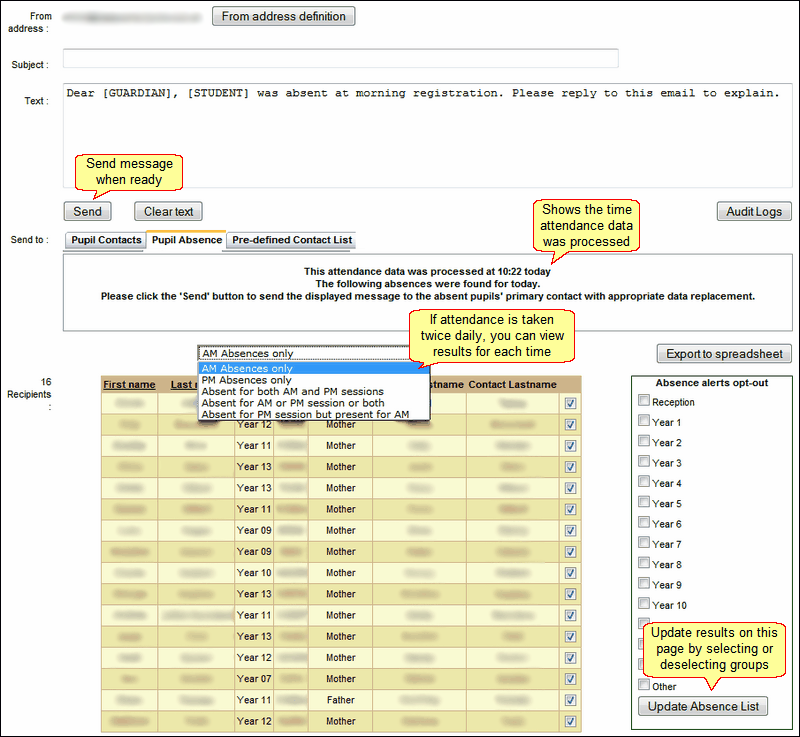
Hovering your mouse over a particular row in the results table will display the message that will be sent to that person.
When you have selected the email recipients and composed a message, click Send.
Dropdown menu options for viewing attendance data
AM Absences only
Selecting this option will display only those pupils who were absent at morning registration and allow you to send an alert to their parents/guardians.
PM Absences only
Selecting this option will display only those pupils who were absent at afternoon registration and allow you to send an alert to their parents/guardians.
This may turn out to be the same, or larger, list of pupils as the one for AM absences so if you send the alert again, the contacts of most of these pupils will receive 2 absence notifications in a single day.
Absent for both AM and PM sessions
Selecting this option will display the pupils marked as absent at both morning and afternoon sessions. This option can only be used after both sets of attendance data have been exported and a single message can then be sent to cover both absences.
Absent for AM session or PM session or both
Selecting this option will display the pupils marked as absent at EITHER the morning or afternoon session AND it will also display those pupils marked absent at BOTH sessions. All contacts for these pupils will receive a single message regardless of whether the pupil was absent during just morning or afternoon registration or was absent for the entire day.
Absent for PM session but present for AM
Selecting this option will display only those pupils marked absent at afternoon registration but present during the morning registration. You can then notify these pupils' contacts about their afternoon absence. This assumes that any pupils who were absent during the morning session have already had alerts sent to their contacts and prevents those individuals from receiving a second notification on the same day.
See also:
Send email to a predefined contact list
Contacts wishing to opt out of receiving email notifications
