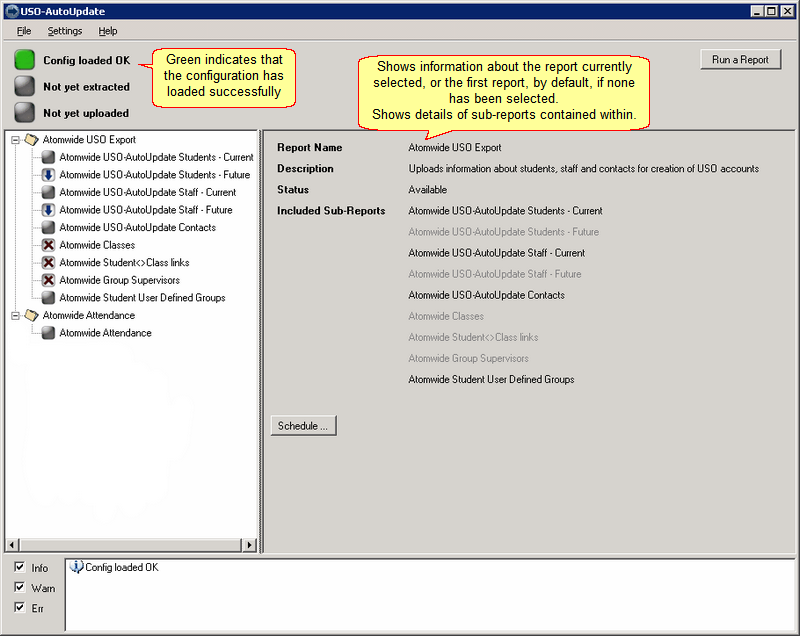
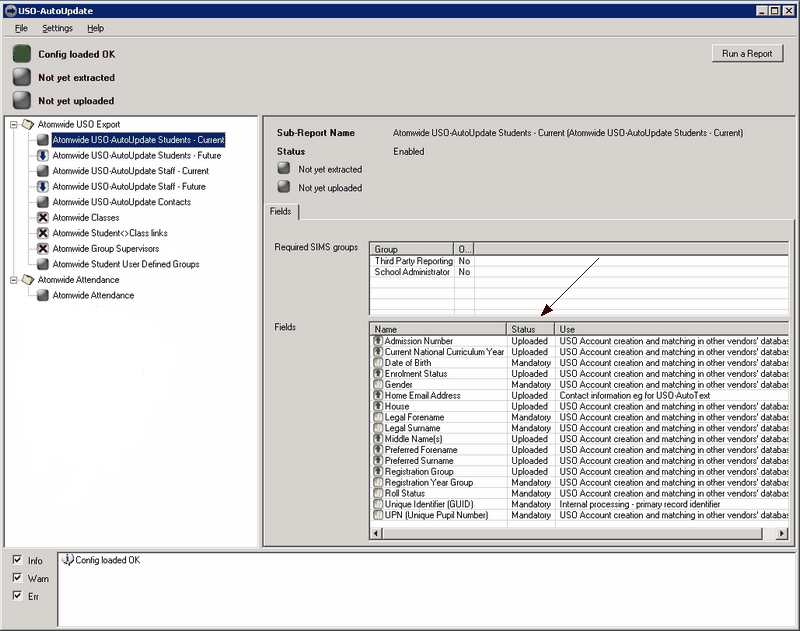
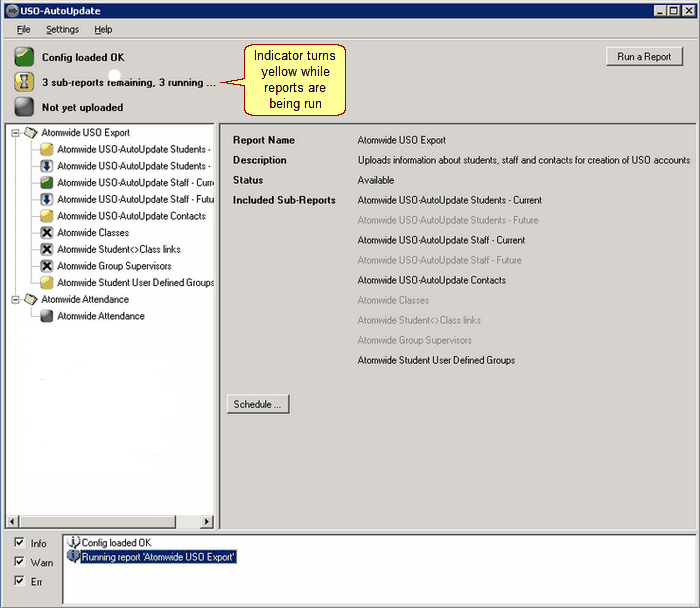
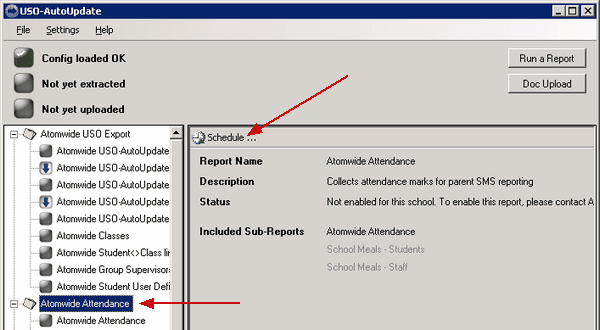
The main reports are marked with a folder icon. The reports contained within each folder are sub-reports of the main report.
All sub-reports that have been accepted via the support site will be marked with a grey square.
Any sub-reports marked with a blue arrow are available but have not yet been accepted.
Any sub-reports marked with a red cross are not available to your school. These cannot be accepted.
Click on a report folder to see the sub-reports available within it. Selecting any sub-report (by clicking on it) will show the fields that comprise it. These will be displayed in the right-hand pane (see below) and will show which fields are being exported.
Explanation of the "Status" fields:
•Mandatory fields - column must be present in order for the sub-report to be processed. •Uploaded fields - optional data fields that were accepted by the school when the sub-report was accepted. These should contain data in SIMS but if no data is found in these fields it will not prevent account creation or maintenance. •Not Uploaded fields - optional fields that the school has opted out of. A school can request to opt out of exporting certain fields by raising a support case with the Service Desk.
Running a test
You will now be able to run a test to ensure data is being correctly extracted from SIMS. The test will not send any data to Wavenet Education, it will just allow you to make sure all the relevant fields are being extracted and to see the information they contain.
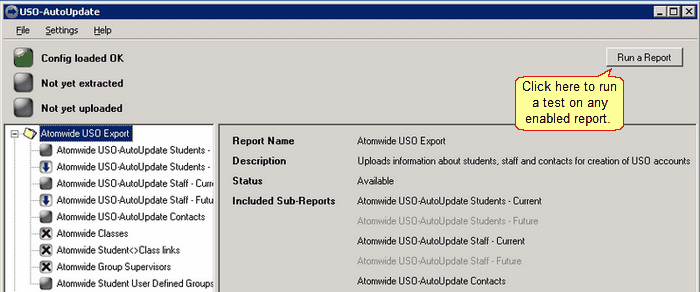
To do this click the Run a Report button in the top right corner. This will prompt you to select which report to run and will run all the sub-reports that the report contains.
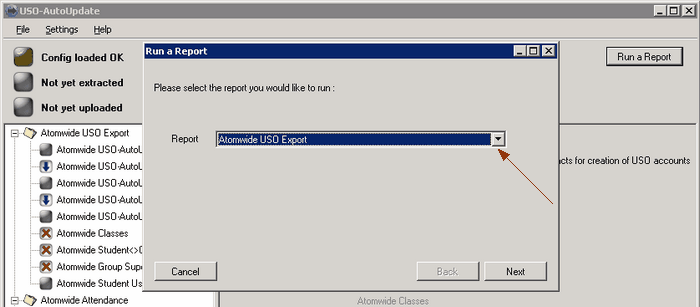
This will open a Report Wizard which will allow you to select the report you want to run.
Select a report from the dropdown menu and click Next.
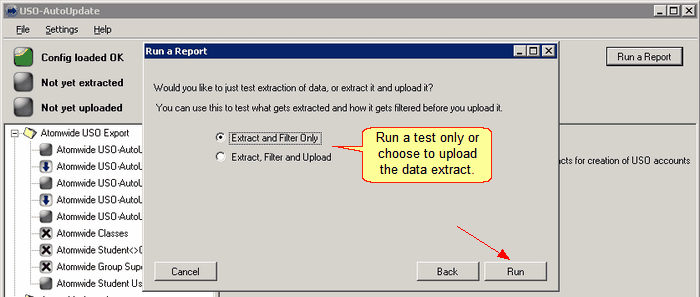
Select whether you just want to test the data extract or whether you want to upload it as well. Click the relevant radio button.
Click Run to proceed.
The status indicators will turn yellow while a report is being run.
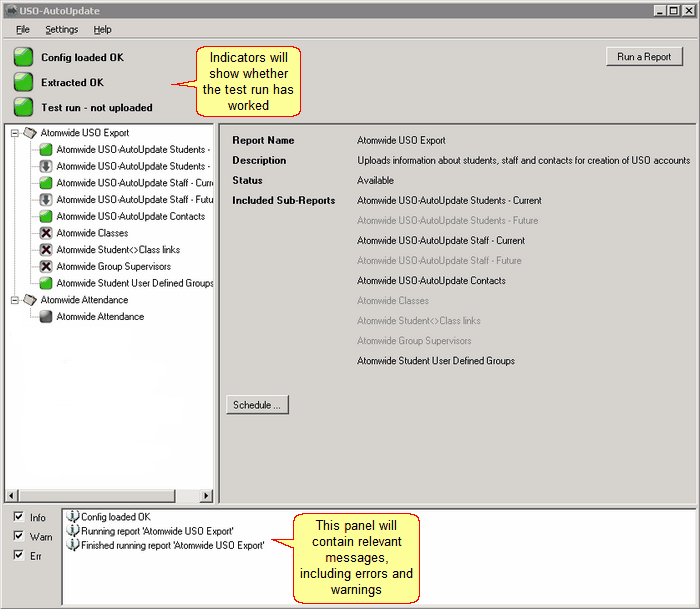
Each of the selected reports will be extracted and put through a verification process. Errors, warnings or status messages will be generated for each one so any problems can be identified and addressed. These messages will be shown in the horizontal pane at the bottom of the interface.
If everything is working correctly all indicators will turn green.
 Errors will be generated if a Mandatory column is missing from a sub-report. This will prevent that sub-report from being exported. A warning will appear if a non-mandatory column of data is blank or no rows are returned. See the Common Errors section for details on resolving these. Errors will be generated if a Mandatory column is missing from a sub-report. This will prevent that sub-report from being exported. A warning will appear if a non-mandatory column of data is blank or no rows are returned. See the Common Errors section for details on resolving these.
|