LGfL schools
Please refer to the LGfL User Guide by clicking here.
 Please note that the reports described on this page are available to schools with a SIMS MIS only! The export of Attendance data from Pearson E1 and Integris G2 can b
e scheduled directly from the AutoUpdate settings page.
Some schools may wish to export additional reports. These need to be accepted by the Headteacher before they will run. In order to accept an additional report the Headteacher must tick the box next to the report's name and click the Accept button at the bottom of the AutoUpdate Settings page found under User Accounts >> AutoUpdate Settings.
Running additional data exports from SIMS
You must set up a scheduled task within the AutoUpdate software to export the data associated with the new report.
To configure a scheduled task for any additional reports go to the start menu and choose Start > Programs > Atomwide Ltd > USO-AutoUpdate. This folder contains three options. Choose USO-AutoUpdate.

When the application opens select (ie highlight) the new report (it can be named a variety of things depending on what options your school has) from the list of reports in the left-hand panel.
When the application opens, select (ie highlight) the report to be scheduled from the list of reports in the left-hand panel. 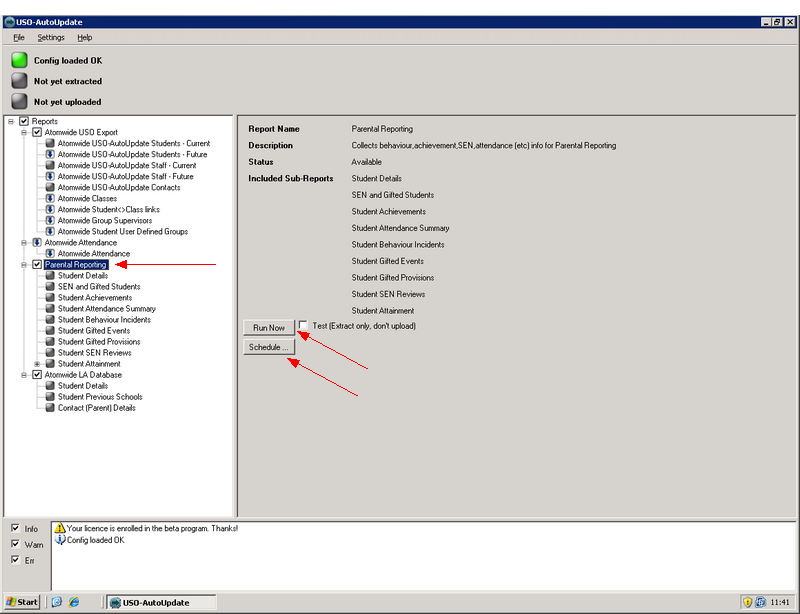
You will need to test this report. You can then send a one-off export to Wavenet Education if you want to ensure everything works correctly.
You will then need to create a schedule for a regular data export to run.
The process for configuring any additional report is the same as that described on the software configuration page. Please follow the outlined process for each report you add.
Please note this applies to the main report only (the one with the tick-box next to it), NOT the sub-reports.
After you have followed the process described in setting up a scheduled task on the software configuration page, your data export will start to run automatically.
See also:
