LGfL schools
Please refer to the LGfL User Guide by clicking here.

If the SIMS username or password is not correct, the following will be displayed on the main screen when the report starts to run. The second traffic light (top left corner of image) will be red. The bottom pane will display information on the nature of the problem. 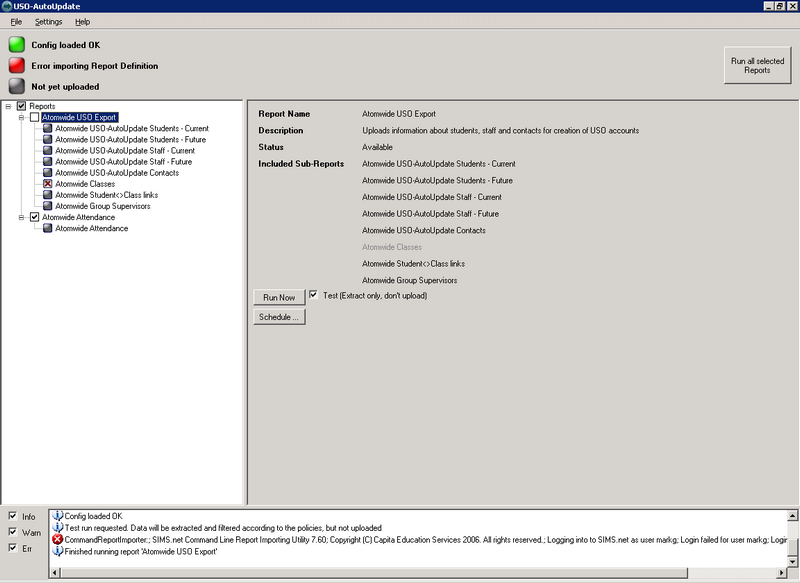 Test username Log in to the school’s SIMS.net system (accessed via the Start Menu) with the SIMS USO-AutoUpdate username and password you have been provided. •If you receive an error (invalid username/password) contact the school to make them aware of this. •If you can log in to SIMS with the username and password provided but not USO-AutoUpdate, then it is very likely that the credentials have been entered into AutoUpdate incorrectly. Try re-entering them in the AutoUpdate configuration settings. |
Check account Clicking on each sub-report will show what SIMS group membership is required to extract those fields successfully. The error and warning messages in the bottom pane will highlight where the problem is occurring (see image below). Log into the SIMS system manager and check that the account used for logging into AutoUpdate is a member of all the groups needed to access the fields required by the reports. 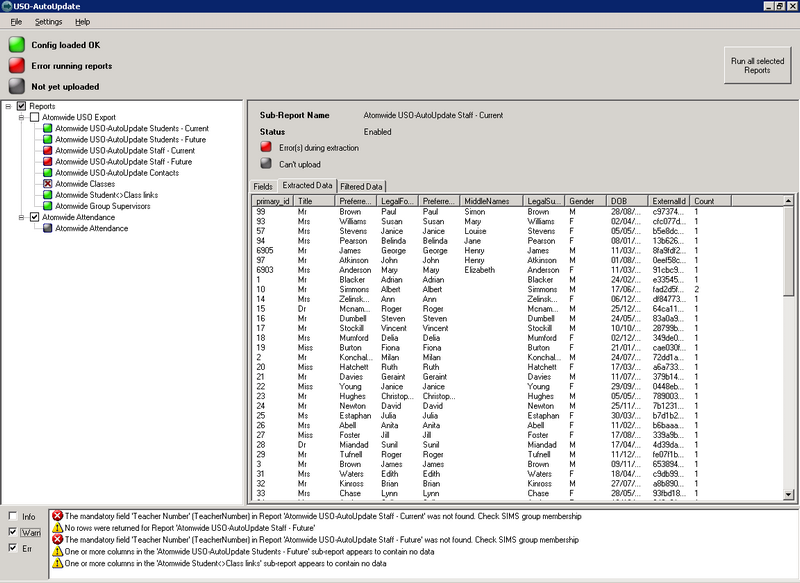 |
If you have received emails or a case has been raised stating there have been no recent AutoUpdate data exports from your school please check the following: •Please ensure that a scheduled task has been set to run and that it is running nightly. This automatically triggers the program to run and to send data to Wavenet Education. However, changing something like the administrator password without also updating this password within “Scheduled Tasks” will prevent the task from running successfully. •Check to see if the machine concerned is turned on at the time the scheduled task is set to run. •Check the program's logs for any error messages. The logs can be found by opening the program and going to All Programs -> Atomwide Ltd -> USO-AutoUpdate -> Log Folder. If any errors are found, please raise a case on the support site and copy and paste or attach the error log to your post. |
SIMS and AutoUpdate are installed on a VM The following error has been reported in some situations where AutoUpdate has been running on a VM: <CommandReporterError>Login failed for user [username]. Reason: Timeout expired. The timeout period elapsed prior to completion of the operation or the server is not responding.</CommandReporterError> Installing AutoUpdate on a server running on a virtual machine of any brand is not recommended and not supported by Wavenet Education. If you experience problems, please consult the vendor of your virtual environment for help with improving its performance.
SIMS and AutoUpdate are installed on a true hardware workstation or server If you experience issues with reports timing out and you are not running SIMS and AutoUpdate on a VM, the problem may be caused by the server meeting only the bare minimum specification requirements for running the two software packages and there is not enough memory for the required operations. |
This error occurs within the AutoUpdate program when trying to create a scheduled task, the error message reads: error: a specified logon session does not exist. It may have already been terminated. This is caused by the Security Policy Network access: Do not allow storage of passwords and credentials for network authentication. When this Security Policy is enabled you will not be able to create a scheduled task from within the AutoUpdate program. Instead a scheduled task will need to be created manually within the operating system. When doing this the task will need to run nightly and run the following batch file: C:\Program Files\Atomwide Ltd\USO-AutoUpdate\usoau-schedule-1.bat |
