 To create a StaffMail alias you must be a Nominated Contact at a school as well as an LGfL mail domain administrator. If the page is available to you as read-only (ie the links are greyed-out), please raise a case and ask the Service Desk to amend your profile settings.
The user requiring an alias must have a USO account, StaffMail must be enabled for that school in general AND for the user specifically.
You can enable a StaffMail account for the user if this hasn't been done already. If you want all future staff accounts to have StaffMail enabled automatically when the USO account is created, then please raise a support case and ask for StaffMail accounts to be created by default for your school.
When accounts are manually created, either singly or in bulk, StaffMail can be enabled at the same time.
Accounts that are created automatically via USO-AutoUpdate will need to have StaffMail enabled at a later date unless you have requested that they are created simultaneously.
You will need to make sure that you own the domain where you wish to create aliases and it is available to use for email. To get the domain added to the support site raise a case with the Service Desk and state your intent to use the domain for aliases. The engineers will get this done.
Alias domains
To create an alias address, you will first need to ensure that the domain in which the alias is to be created is already available to the school.
To check whether a domain has been set up, go to Email > LGfL StaffMail Accounts and check that the desired domain appears in the Domain dropdown list.

If the domain is not in the list, raise a support case with the Service Desk and request that the domain be added.
Administering aliases
Once the required domain has been added to your school, you will be able to select it from the Domains dropdown menu.
When an alias domain is selected, the function in the Activity field will automatically change to "Administer aliases".
If any aliases have already been created in that domain, they will all be listed along with the @lgflmail.org email addresses they are mapped to. If no aliases have been configured within an alias domain to date, the list will be empty.
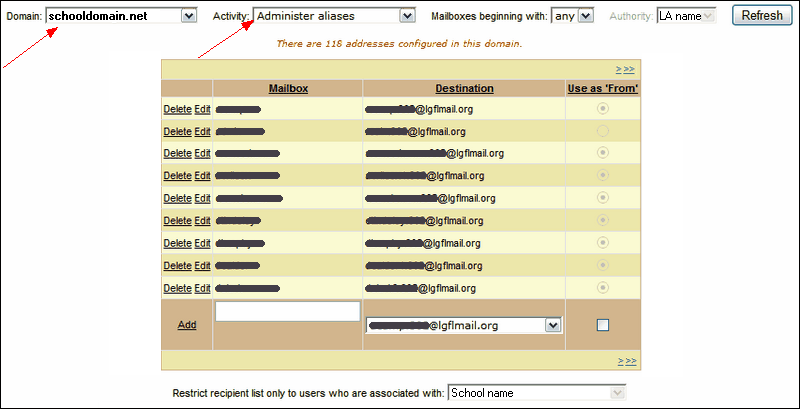
You can now edit or delete any existing aliases by clicking on Edit or Delete to the left of a user's name.
You can also create new aliases for any existing StaffMail user.
Creating an alias
Aliases need to be created one at a time.
To create a new alias, enter the first part of the email address as you'd like it to appear (the bit before the @ symbol) into the text box at the bottom of the list (see below).
Then select the relevant person's lgflmail.org email address from the dropdown list in the second column.
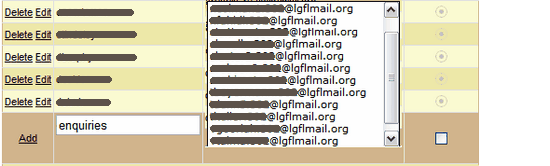
This process will create an alias address where the first part of the address will be whatever you entered in the text box and the domain will be the one selected from the Domain dropdown list.
The resulting address will look like <aliasname>@<aliasdomain.org>. Emails sent to that alias address will be directed to the selected user's lgflmail.org mailbox.
At this point, you also have the option of allowing the new alias to be used as the "sent from" address by clicking on the tick box in the Use as From column. When the user sends emails, the specified alias address is displayed in the "from" field instead of the actual lgflmail.org address.
After entering an alias and selecting the person it is meant to go to, click the Add link to complete the process. The alias has now been successfully created.
Please note that any changes made do not take effect instantly but may take up to several hours to filter through the system.
Auditing
It is important to periodically check that all of the email addresses assigned to your establishment's domain(s) are still required.
To assist with this, you may notice that some rows in the alias table may be highlighted blue or red.
Blue backgrounds indicate a user who is associated with another school in the same MAT or Federation as the domain's owner.
Red backgrounds indicate a user who is not associated with the establishment that owns this domain, or any other school in the same MAT or Federation.
If an alias is no longer required, it can be deleted by using the 'Delete' button or changed with the 'Edit' button.
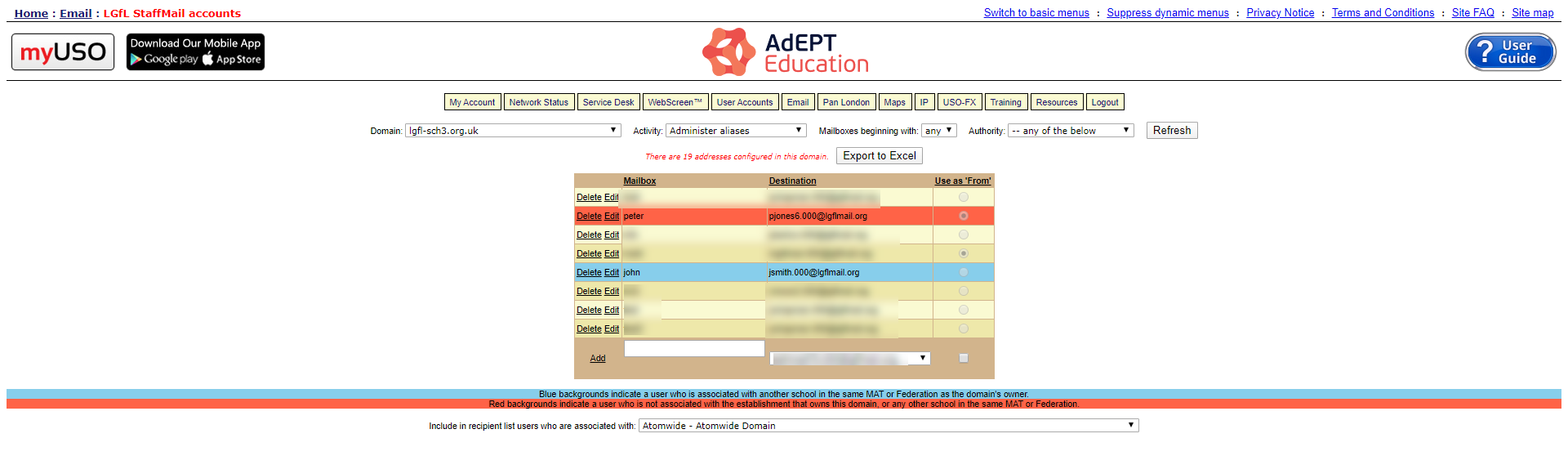
The rows will be highlighted as pictured above.
Please note that you can also produce an 'outdated alias' report under User Accounts > User reports. Further information is visible here.
See also:
