 If your school uses an automated user import program such as Groupcall or USO-AutoUpdate, you must consider carefully before creating new users manually as this could result in duplication and cause confusion.
To request the manual creation of a new user account you must be a Nominated Contact.
Select User Request (single) under the User Accounts tab.
Request the creation of a New User Account in LGfL schools
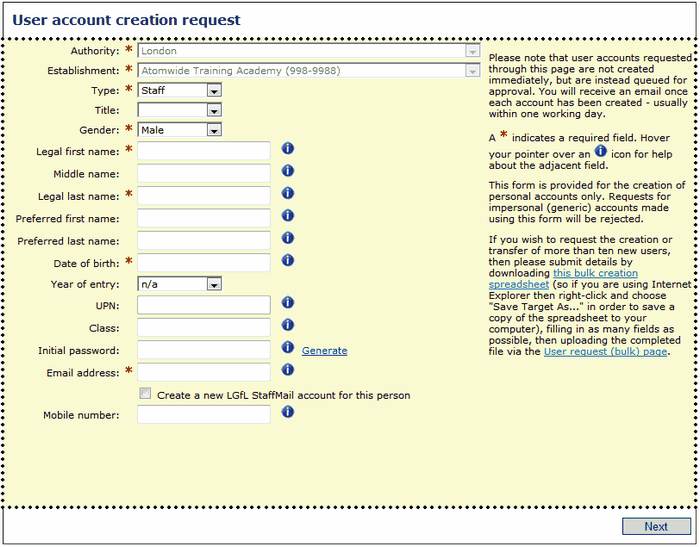
Enter the information requested. Fields marked with a * are mandatory.
If mandatory, the Initial password can be supplied by you or can be generated automatically. If you don't want to provide a password you can create one that meets your LA's security criteria by clicking the Generate link. A new password will be randomly created. Please ensure you communicate this password to the relevant user as it may be impossible for you to access it again once you leave this screen. Whether this is possible would depend on your user profile settings and the security policies applied by your LA and school.
If the new user is in an LGfL school that has StaffMail enabled, you can create a StaffMail account at the same time as the USO account. Use the tickbox below the Email address field instead of entering an email address and the new lgflmail account will be automatically created.
Hovering over the blue "i" button causes a window with an explanation of that field to pop up. Alternatively, you can see an explanation of all the fields here.

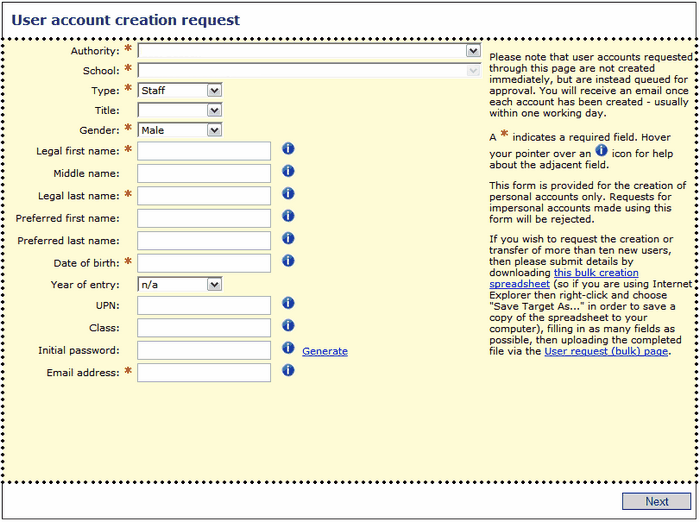
When completed, click on Next. If this user has never been registered in the system, the screen will prompt you to proceed.
If the new user already exists, see the explanation on how to proceed here.
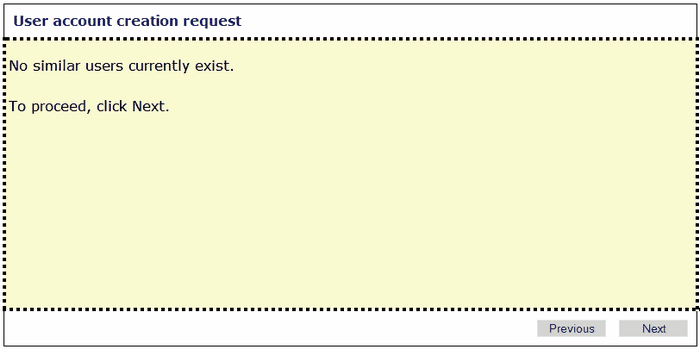
The system has now checked no one with that name and date of birth exists and will allow you to proceed. Click Next.
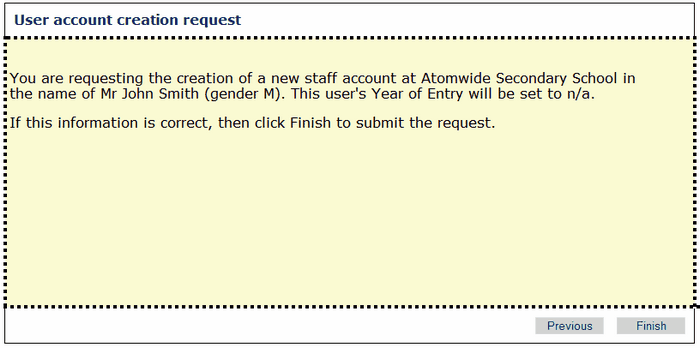
You will then see a confirmation this is a new user. If the information is correct click Finish to send your request.
You will see a confirmation that your request has been sent and will receive an email once your request has been dealt with.
