To create a shared mailbox that can be accessed by multiple users you must be a Nominated Contact at a school as well as an LGfL mail domain administrator. If the page is available to you as read-only when you feel you should be able to do more, please raise a case and ask the Service Desk to amend your profile settings.
You first need to create the shared mailbox and then giver users permission to access it.
Shared mailboxes are generally created for a role whereas aliases are generally created to provide a user with an alternative email address. For example, where an address such headteacher@myschooldomain.sch.uk or office@myschooldomain.sch.uk is needed, it is advised to create these as shared mailboxes. This not only allows multiple users to access the mailbox but means that when a person leaves the school, the email related to the role will remain and will be accessible to the next person that takes up that role.
Creating a shared mailbox
Go to Email > LGfL StaffMail accounts in the support site and select the domain in which the shared mailbox needs to be created from the Domain dropdown list. The domains shown will be relevant to your establishment only.
If the domain you require is not shown in the dropdown list you will need to raise a case and request that the Service Desk add the domain to the list first.

As soon as you choose a domain, the Activity field to the right is activated and changes to read Administer aliases.

All the aliases currently configured for that domain will be listed in a table in the centre of the screen.
In the empty text box in the Mailbox column, enter the first part of the email address you want the shared mailbox to have.
The second part of the address will consist of the domain chosen earlier from the Domain dropdown list. In the Destination column, select --> new shared mailbox (the last option in the dropdown list).
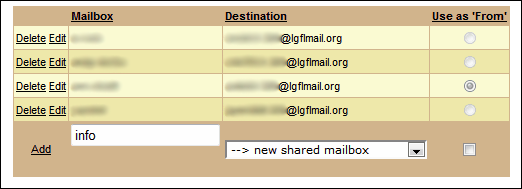
You do not need to tick the box in the next column as this can also be configured after a new shared mailbox is created. The new mailbox will automatically use the specified alias as the "from" address. Spam digests are automatically enabled and will be sent to the "owner" of the mailbox.
Default settings will be applied during mailbox creation regardless of whether either box is ticked.
 Spam digests are controlled through the user's own account settings. To enable or disable spam digests a user will need to go to My Account >> Email and switch this on or off. If spam digests are enabled, the user will receive a single spam digest which consolidates all messages sent to all the email addresses associated with that user.
Click the Add link on the left.
Your new shared mailbox has been created. Its actual address will take the form of mailbox1234@lgflmail.org and it will automatically be linked with the specified alias (eg info@schooldomain.org)
No user can access a shared mailbox until access has been configured. You will now need to give relevant users permissions to use this mailbox.
Viewing shared mailbox properties
Make sure the correct domain is selected in the Domain dropdown list.
In the Activity field, select Manage shared mailboxes.

All shared mailboxes will be listed.

This will provide you a read-only view of the status of each existing shared mailbox (if there are any other than the one just created).
You will be able to see:
- the source, which is the alias address at the selected domain,
- the real mailbox address,
- the display name,
- the last time it was accessed,
- the number of items it contains,
- the number of deleted items that can still be recovered,
- the total size of the mailbox.
To change the properties of a shared mailbox click on the Manage link to the right of that mailbox.
Adding users to a shared mailbox
When you click Manage, the shared mailbox management interface will open (image below).
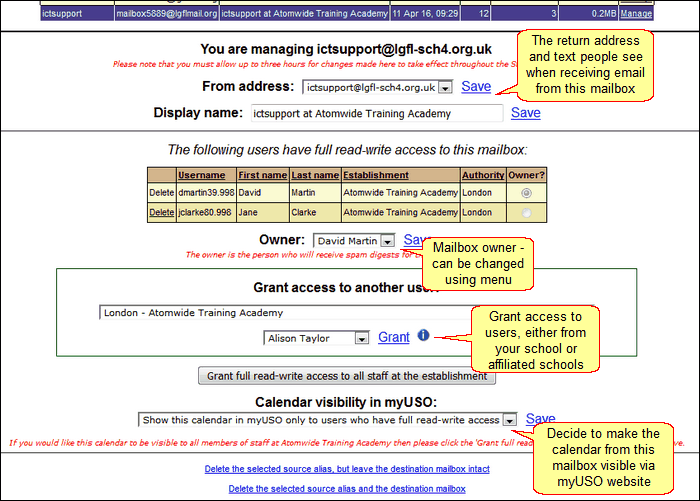
You can allow up to 20 individual selected accounts or, as an alternative, all staff users within the school to access a shared mailbox.
You can also grant mailbox access to users at other schools you may be affiliated with as part of an Academy Trust or similar grouping. To make this possible, you would need to initially raise a support case and inform the Service Desk which schools are part of your group.
Select one user at a time from the dropdown list and click on the Grant link.
If adding users from other schools, select the school from the dropdown menu first, then the second menu will contain a list of users from that school.

Alternatively, you can give everyone at the school access to a single mailbox by clicking Grant full read-write access for all staff at the school.

Changing mailbox settings
Mailbox address
You can decide which address should appear as the "from" address when emails are sent from a shared mailbox. The choice of addresses, depending on how many aliases exist for this mailbox, will be shown in the dropdown list next to the From address heading.
The "from" address can be set to be the selected alias, another alias or the actual address of the mailbox (ie the lgflmail.org address). So when a recipient receives an email sent from the specified alias, any of the available options can appear in the "from" field.

You can also set the Display name for the mailbox to be whatever you like. This is what the recipient will see in the From fields when the email is received.
This is not the same as the "from address" which is the email address that will become visible in the "To" field if someone replies to that email.

Mailbox user permissions
Every shared mailbox must have at least one primary user considered to be its 'owner'. By default, the owner is set to be the person who creates the shared mailbox. If the initial owner does not need access to the shared mailbox, another user must be given access, then the owner must be changed. After this is done, the initial owner can be deleted and will not not have the ability to log into the mailbox.
You can change who the owner is by giving additional users permission to access the mailbox and then selecting one of these users from the dropdown list next to the Save link.
The only practical impact of being the "owner" of a shared mailbox is that spam digest notifications will be received only by that person.

All users able to access the shared mailbox will be listed for that mailbox.
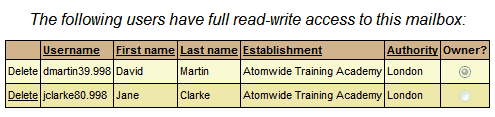
You can remove a user's access to the mailbox by clicking Delete to the left of the username.
You cannot delete the owner of a mailbox until you have given ownership to a different user as a mailbox must always have at least one owner. Consequently, the Delete function next to the mailbox owner's name does not contain a link.
Calendar access in myUSO
You can choose to display the calendar of a shared mailbox to users at your school by configuring the relevant option using the menu.
The available options allow to:
1.Not show the calendar in the myUSO website - this means only users who can access the mailbox can access the calendar by logging in.
2.Show the calendar to all staff via myUSO - this would include all staff who do not have direct access to the mailbox and they will have a read-only view of the calendar.
3.Show the calendar in myUSO but only to the users who have access to the mailbox directly, thus providing them an alternative method for viewing the calendar.

Deleting a shared mailbox
If you need to delete a shared mailbox, you can do one of the following:
Delete the selected source alias but leave the destination mailbox intact
This will delete the shared mailbox alias only.
For example, an alias such as info@schooldomain.org will cease to exist but the actual mailbox (eg mailbox1234@lgflmail.org) to which mail is forwarded will remain completely untouched. The actual mailbox may have other aliases attached to it or can have aliases created for it in future. All messages received to date will be retained.
Delete the selected source alias and the destination mailbox
This will permanently delete the shared mailbox alias as well as the actual mailbox (eg mailbox1234@lgflmail.org) to which mail is forwarded. If any other aliases are associated with this shared mailbox, they will all be deleted if the destination mailbox is deleted.
If choosing the second option described above to delete the alias and the destination shared mailbox, please be aware that once deleted the information is permanently gone and cannot be recovered. Please consider carefully before deleting!
Please note that any changes made do not take effect instantly but may take up to several hours to filter through the system.
See also:
