The StaffMail system can now allow users to book rooms or resources in such a way that makes this information accessible to other users. This feature can be used to book meeting rooms or items that need to be shared by a number of individuals.
These resources need to be created in the same way as a shared mailbox. Once created, each resource gets its own email address and can be "invited", in the same way as meeting invitations are issued. This will book the resource out for the specified amount of time.
Please note that this "mailbox" is not intended to be used by any individuals to send email. It is only intended to enable users to book out the resource.
Create a new shared resource
A Nominated Contact with Mail domain administrator permissions will be able to create new shared resources.
To create a new shared resource go to Email > LGfL StaffMail accounts.
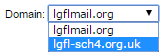
Use the Domain menu to select your school's domain.
At the bottom of your list of aliases, enter the name of the shared resource into the text box provided. Please note this will form the email address for the resource.

Then use the menu on the right side to select the option called -->new resource mailbox
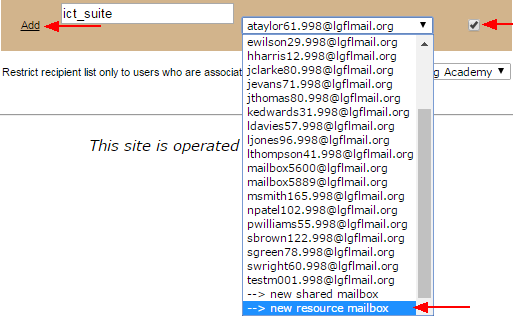
Additionally, you should tick the box on the right to use the alias you create as a "From" address.
To create the item, click Add on the left hand side.
Once the mailbox is created, you will need to decide who can access it.
These users will be the only ones able to log into the mailbox and edit the calendar directly.
Configure shared resources mailboxes
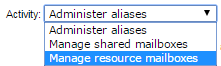
Use the Activity menu to select the Manage resource mailboxes option.
You will then see a list of the existing resource mailboxes, including the one just created.
Click Manage to configure settings for the mailbox.

This will open the interface containing all settings for the mailbox.
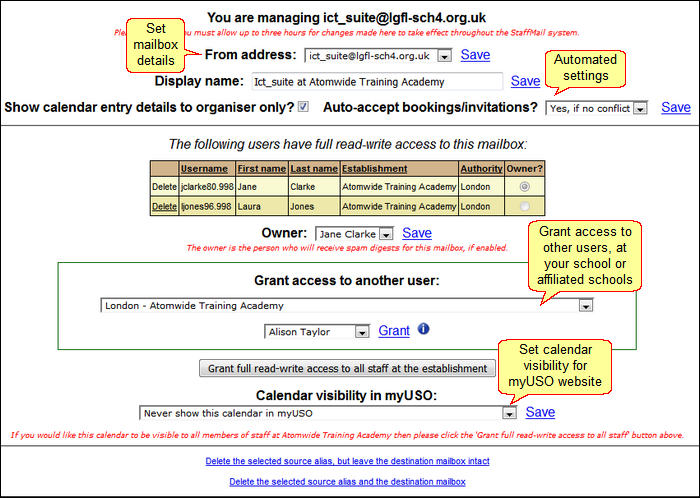
The settings, as illustrated below, are:
General mailbox settings
The "from" address is what users will see as the return address when the mailbox sends them an email to reply to their booking request. It is advisable that the alias is used instead of the mailbox name.
The alias is set by default.

The "display name" is the friendly name that people will see when the resource sends them an email to reply to their booking request.
This is a free text field and if the default suggestion is not suitable, please feel free to change it to anything you prefer. This should be something that will make sense to your colleagues.

Auto-settings
Show calendar entry details to organiser only: If this is ticked (on) then when anyone makes a booking in this calendar, everyone other than the person booking it will not see the details of the booking. It will simply show the resource as booked but will not show by whom.
Auto-accept bookings/invitations: When a resource is booked by a user sending it a calendar invitation, this allows the resource to automatically respond and let the invitee know if it's available.
The options for auto-accept are:
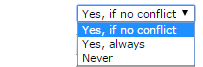
Yes if no conflict: If the resource is available at the requested time, the resource will accept the booking. The user issuing the calendar invitation will receive an email back from the resource confirming its acceptance.
Yes, always: The resource will accept all bookings automatically even where that time slot has already been booked by someone else. The user will receive a confirmation response.
Never: The resource will never accept a booking automatically. Someone with permissions to the resource mailbox will need to log in and manually deal with all booking requests.
Please remember to save any changes made to these settings via the Save changes button.
Mailbox user permissions
By default, the person with permissions to any shared mailbox is the person who creates that mailbox.
To grant permissions to other users, simply select as many names as needed, one at a time, from the dropdown menu and click the button to the right of the menu.
Please note it is not advisable to grant access to such mailboxes for everyone at the school.
Every resource mailbox must have at least one primary user considered to be its 'owner'. By default, the owner is set to be the person who creates the shared mailbox. If the initial owner does not need access to the shared mailbox, another user must be given access, then the owner must be changed. After this is done, the initial owner can be deleted and will not not have the ability to log into the mailbox.
You can change who the owner is by giving additional users permission to access the mailbox and then selecting one of these users from the dropdown list next to the Save link.
The only practical impact of being the "owner" of a shared mailbox is that spam digest notifications will be received only by that person.

All users able to access the mailbox will be listed for that mailbox.
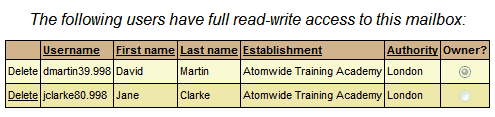
You can remove a user's access to the mailbox by clicking Delete to the left of the username.
You cannot delete the owner of a mailbox until you have given ownership to a different user as a mailbox must always have at least one owner. Consequently, the Delete function next to the mailbox owner's name does not contain a link.
Calendar access in myUSO
You can choose to display the calendar of a resource mailbox to users at your school via the myUSO website by configuring the relevant option using the menu. This will let people know when the resource is booked without allowing them to modify other people's entries
The available options allow to:
1.Not show the calendar in the myUSO website - this means only users who can access the mailbox can access the calendar by logging in.
2.Show the calendar to all staff via myUSO - this would include all staff who do not have direct access to the resource mailbox and they will have a read-only view of the calendar.
3.Show the calendar in myUSO but only to the users who have access to the mailbox directly, thus providing them an alternative method for viewing the calendar.

Delete the resource
If you no longer need a mailbox you can delete it.
There are two options available.

If you use the first option shown above, the alias will be deleted but the action mailbox will remain. This means that users will no longer be able to book this resource as the alias will stop working. The actual mailbox will remain however, so that those with access permissions will be able to access it and retrieve any information it may contain.
The second option shown above (in blue) will delete both the alias and the mailbox. It will cease to be accessible to any user.
