 To configure StaffMail settings, StaffMail must first be enabled for the relevant school. If this has not yet been done, you will need to raise a case and request that StaffMail be enabled by the Service Desk.
The LGfL StaffMail accounts page (under the Email tab) allows Nominated Contacts to check whether a USO account has StaffMail enabled and to either disable it or enable it if it isn't yet.
StaffMail accounts can be created simultaneously with USO accounts if the tick-box requesting their creation has been ticked when requesting a user account.
If you want all future staff accounts to have StaffMail enabled automatically when a USO account is created, then please raise a support case and ask for StaffMail accounts to be created by default for your school.
Check a user's StaffMail status
First find the user in question by searching either by USO username (including the three-digit LA suffix) or by first name and/or last name.
Enter the search criteria and click the Search button.
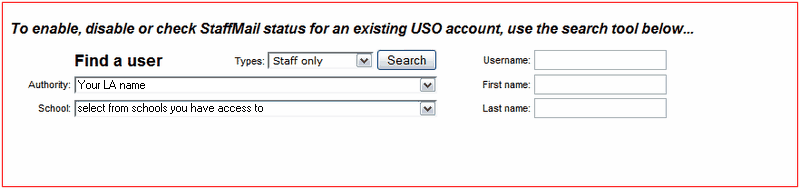
When results are generated, a column to the right of the username will indicate whether StaffMail is enabled or not for that user's account.

Click Select to the left of the person's username.
The selected row will turn blue and a button will appear below it.

If StaffMail is not yet enabled, the button will allow you to enable it.
If StaffMail is already enabled, the button will allow you to disable it.
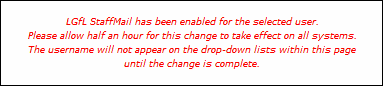
After clicking the button to perform either action, you will see a confirmation message that the change has been made.
If at a later date you need to reverse this action, follow the process outlined above.
Please note that any change made to a user's settings may take up to half an hour to take effect in the StaffMail system.
See also:
