Early Years logins can be used by any primary school, although some versions will only work if the school is using SIMS or Integris G2.
The system provides three different log in methods which younger pupils can use to make it easier for them to log in and access the learning resources available.
For more information about how the pupils use the system please read the MyUSO help pages.
Enabling Early Years logins
To enable Early Years logins the following needs to be done:
•AutoUpdate needs to be set up and exports occurring regularly. Full details about how to set this up can be found here.
•The Headteacher needs to approve the 'Enable USO Early Years simplified logins' declaration. This can be done on the Declaration management page.
Managing Early Years logins
Once Early Years logins have been enabled each pupil is automatically assigned a PIN code and a QR code.
The PIN code can be changed and the QR code can be viewed by a Nominated Contact by going to User Accounts > Early Years logins.
Changing a PIN code
By default each child's PIN code is their date of birth, in the format of DDMM. A Nominated Contact can change this by finding the child and clicking Change PIN.
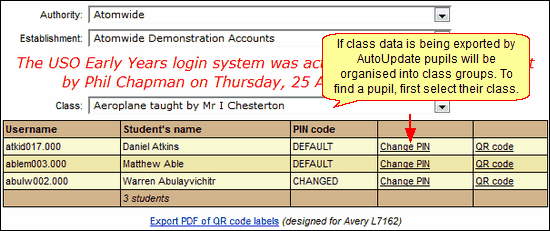
Then, enter the new PIN code in the box and click Update to save it.

You will receive confirmation that the PIN code has been changed and the PIN code column for that pupil will change from DEFAULT to CHANGED.
The PIN code can then be changed again or set back to the default, to do either of these click Change PIN.
To change the PIN code back to the pupil's date of birth simply click Reset to default.

Viewing a QR code
Each child also has a QR code created for them, once the system is enabled. These can be viewed by Nominated Contacts on the Early Years logins page.
To view a code, find the pupil and click the QR code link.
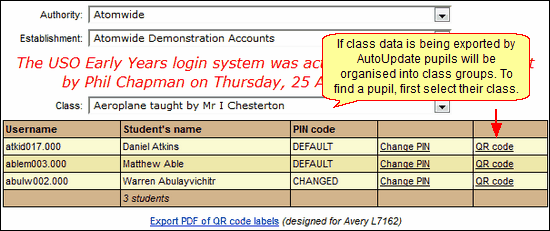
This will open a new tab with a single QR code.
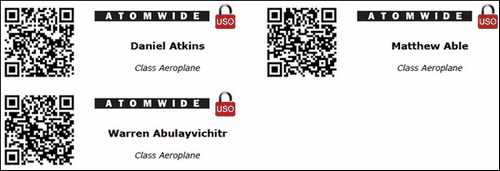
Alternatively a list of QR codes can be viewed at once, to do this click Export PDF of QR code labels.
This will export a PDF file with the pupils' names, class and QR code formatted to fit on Avery labels.
See also:
