My school needs to export Attendance data. How is this done?
To export attendance from SIMS, your school must have Autoupdate installed and Attendance data exports accepted by the Headteacher via the AutoUpdate settings page.
Your school must decide what time of day the MIS is fully up-to-date with that day's attendance data and set up a scheduled task within the AutoUpdate software to export that data.
To configure a scheduled task for attendance exports go to the start menu and choose Start > Programs > Atomwide Ltd > USO-AutoUpdate. This folder contains three options. Choose USO-AutoUpdate.

When the application opens select (ie highlight) the Attendance report from the list of reports in the left-hand panel.
Then click the Schedule... button in the right hand (grey) panel.
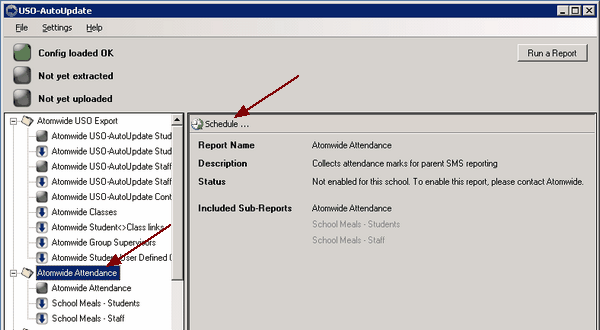
A new window will open (as shown below). The Report field at the top should say Atomwide to Attendance.
Enter your Windows username and password.
Select the days of the week and time of day when you want the attendance data to be exported. Ideally, the time should be set to whenever all the teachers have had a chance to enter attendance data into the MIS.
Click the button to Create Scheduled Task (this becomes active after you enter your security credentials).
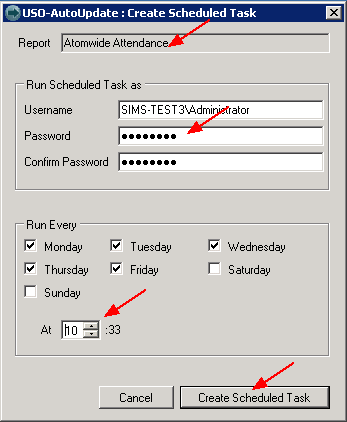
Done. An Attendance report has now been set up to run automatically.
Shortly after the report runs, you will be able to view attendance data via the AutoText function in the support site and send texts or emails to the relevant pupils' contacts.
* Please note that NO messages are sent automatically via AutoText. An SMS Sender must proactively decide who should receive messages and perform a series of actions to send them.
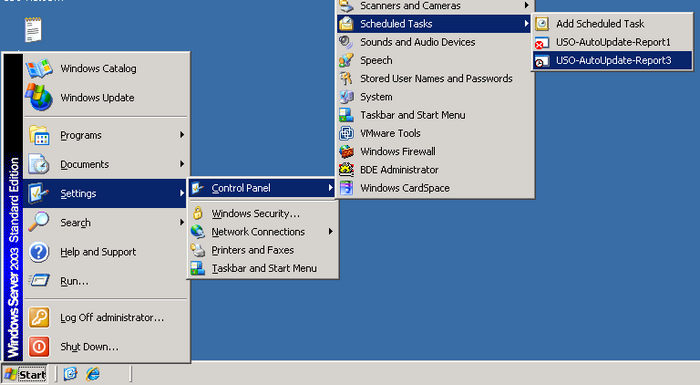
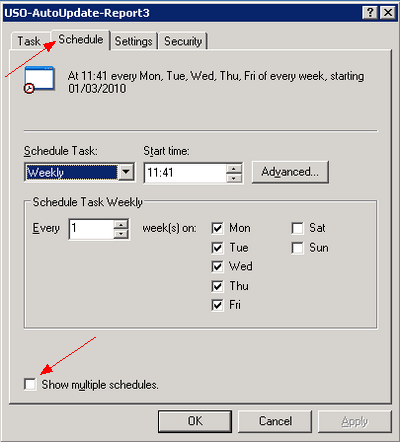
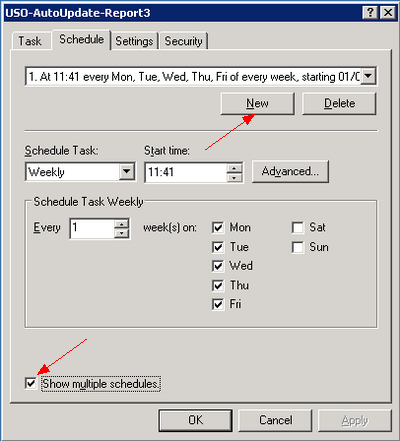
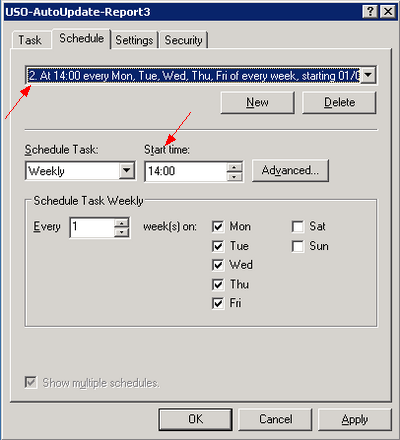
You can also choose to export your school's attendance data two (or more) times a day to be able to notify parents of am and pm absences. Additional attendance exports must be scheduled using the Windows controls and not the AutoUpdate software.

 Setting up additional scheduled tasks is done via standard Microsoft Windows controls not through the AutoUpdate interface. As a result, the creation process and location of the Scheduled Tasks interface may vary significantly from the one described below depending on your version of Windows. For example, task scheduling is radically different in Windows 2008. Please take the guidance below as a general indication of how to proceed and adapt it to the operating system your machine is running.