How do I remove a user from an establishment?
To remove a user's association from your establishment, first find the user via the User Accounts > User List/Search function to modify their account status.
Once you have found the user, click on Details to the left of their name to modify their account.
Click on the Establishments or Schools tab, then click on Edit Account.
If a user is associated with multiple schools you can delete them from any school other than their main school by clicking on Remove next to the relevant school.
The user's association with that school will end as soon as the change is made.
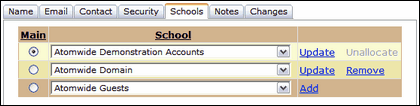
If the user is associated with one school only and you need to remove this association, click on Unallocate next to the main school.
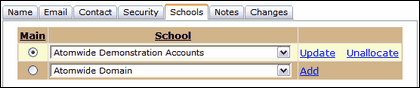
 The option to Unallocate is available when the user is associated with only one school. If you wish to Unallocate a user with multiple associations you must Remove the other associations first. Once Unallocated, the account will be suspended and will be transferred to a pool of inactive users.
Unallocating a user does not delete them from the system, it simply ends their association to a particular school and suspends their account. If this user moves to another school within the Local Authority, they will only need to be associated with the new school, NOT created as a new user. Access to their account will then be restored and they will be able to use their existing login details.
Click on Save changes when done.
