Once you have specified which establishments are affected by the problem, you will be taken to a screen which will display previously raised related issues.
The relationship may be determined by issues raised, person raising a case, establishment raising a case or any other feature it has in common with the current issue.
This is intended to help you resolve your current issue quicker if a very similar issue was raised and successfully resolved in the past.
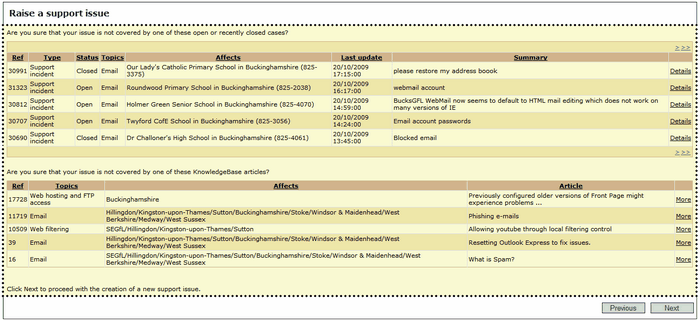
If a previous issue in the list is related to your current query, you can click on the Details link to the right of that issue to obtain more information.
You will need to scroll to the bottom of the page to see the details of the selected issue in a smaller box (see image below).
Please do this first as you may find you are able to resolve your issue without needing to raise a new support case.
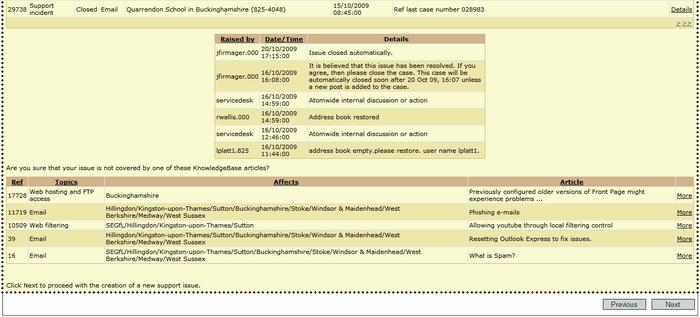
If you don't find any existing information that helps resolve your query, continue with Raising an Issue by clicking Next.
In the final screen, use the Summary box to enter a short overview of your issue.
In the Details field you should provide as much information as possible about the problem, including any attempts you have already made to resolve it.
If you have any files to attach, for example a screenshot of an error click Browse and find them on your computer or network drive.
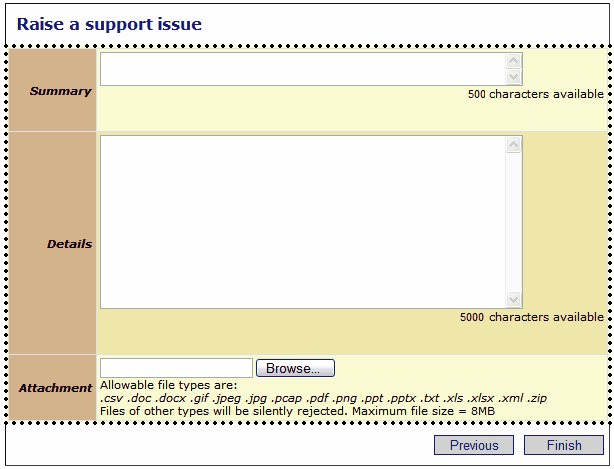
Click on Finish to send your support request to the Service Desk.
 Please note that if you exit the Raise a Support Issue screen at any point without clicking Finish, your request will NOT be submitted.
