Please note: the LondonMail service is currently being retired. For more information, please see https://lgfl.net/services/londonmail
When LondonMail is enabled for a school, SafeMail rules can be configured without any intervention from the Service Desk.
Pupils access LondonMail by going to http://www.lgfl.net/, clicking the Log into LondonMail link and logging in with their USO credentials.
SafeMail refers to a set of rules that can be created within LondonMail that allow schools to exercise greater controls over the email activity of pupils in different year groups. SafeMail is not a separate email product.
This page can be accessed by Nominated Contacts when LondonMail is enabled for the school.
If specific SafeMail rules are not applied, the default setting, where emails to and from all domains are allowed, will be applied.
In SafeMail mode you can limit the sending and receiving of emails from different domains and apply different settings to pupils of different ages.
Go to Email and select LGfL SafeMail configuration.
From this page you can view the following:
RBC-level rules - these are rules that have been set up by LGfL.
Authority-level rules - these are rules that have been set up your Local Authority.
You can also change the following:
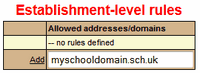
Establishment-level rules - these rules are managed by the school.
Establishment-level options - these are rules for each year group and are maintained by the school.
Settings available to Nominated Contacts
You will always be presented with a list of all year groups regardless of your school type. Please ignore any year groups that don't apply.
If any settings are changed for a year group that does not exist at the school in question, the amended settings will have no effect.
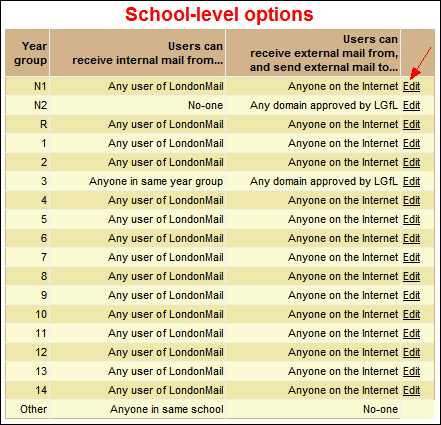
Click Edit next to the year group whose settings you want to configure.
The options for that year group will become editable and drop down menus of options will be available.

Please note that the category of users called Other refers to staff accounts and the settings are not changeable. For an explanation of these accounts please see the section titled "LondonMail for staff members" further down this page.
Internal email settings
Internal email refers to any emails sent to and from the lgflmail.net domain.
By default, any user within the lgflmail.net domain can email another LondonMail user. If you want to restrict incoming emails to a smaller group or allow none at all, select a different setting from those available in the dropdown list.
The settings will affect both the sending and receiving of emails.
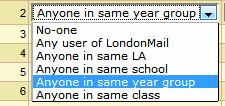
The options for Internal mail are:
•No-one -prevents any internal mail from being sent or received. Use this option if you do not want the year to be able to send or receive any mail of if you want them to only send or receive mail specified in the external rules.
•Any user of LondonMail - this is the most open rule and allows internal mail to be sent to and received from any LondonMail account.
•Anyone in in same authority - this allows internal mail to be sent to and received from any LondonMail account from the school's local authority.
•Anyone in same establishment - allows internal mail to be sent to and received from any LondonMail account that is linked to your school.
•Anyone in same year group - allows internal mail to be sent to and received from any LondonMail account that is in the same year as the sending account.
•Anyone in same class - allows internal mail to be sent to and received from any LondonMail account that is in the same class as the sending account.
However, the delivery of internal emails is subject to the rules governing the recipient's inbox.
For example, a pupil whose internal emails are set to allow "anyone in the same school" tries to email another pupil at the school who is in a different year. The second pupil's emails are set to allow emails from "anyone in the same class" only. The first pupil will then be unable to get an email through to the second pupil.
When you are done, click Update to save the settings. Please note all changes need up to 24 hours to take effect.You are able to edit the rules for internal being received and sent. For these rules internal refers to the LondonMail system, any other email accounts and addresses are considered external.
External email settings
External email refers to all emails sent to and from any domain OTHER THAN the lgflmail.net domain.
By default, pupils can receive email from and send email to any domain. As this may be undesirable, you can restrict incoming and outgoing mail.
If you wish to change this setting, select one of the other options from the dropdown list. Whatever option you select will govern both incoming and outgoing mail.
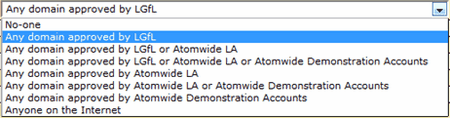
The options for external mail are:
•No-one - prevents any external mail from being sent or received. Use this option if you do not want the year to be able to send or receive any mail or if you only want them to be able to mail internally.
•Any domain approved by LGfL - allows external mail to be sent/received from any of the domains listed in the RBC level rules.
•Any domain approved by LGfL or LA - allows external mail to be sent/received by any of the domains listed in the RBC level and Authority level rules .
•Any domain approved by LGfL or LA or School - allows external mail to be sent/received by any of the domains listed in the RBC level, Authority level and Establishment level rules.
•Any domain approved by LA - allows external mail to be sent/received by any of the domains listed in the Authority level rules.
•Any domain approved by LA or School - allows external mail to be sent/received by any of the domains listed in the Authority level or Establishment level rules.
•Any domain approved by School - allows external mail to be sent/received by any of the domains listed in the Establishment level rules.
•Anyone on the internet - allows external mail to be sent/received by anyone.
When you are done, click Update to save the settings. Please note all changes need up to 24 hours to take effect.
 Applying SafeMail rules to specific year groups requires that pupils are grouped correctly. The best way to ensure that pupils are in correct year groups and the information is up-to-date is by using AutoUpdate to create and update accounts directly from your MIS.
Adding rules
In order to use settings like Any domain approved by School, the Nominated Contact will need to ensure that some settings are configured in the table called Establishment-level rules.
You may add any required domains to your school's approved domains and/or specific email addresses list by entering them one at a time.
Enter the required information and click Add. This will allow you build up your own locally allowed lists which would be applied if the Any domain approved by School or the Any domain approved by LA or School is selected.
LondonMail for staff members
When LondonMail is enabled for a school, staff automatically have the ability to use it. Staff can access their LondonMail accounts via the link found at http://www.lgfl.net/ and logging in with their USO credentials.
These accounts are designed and configured to make e-mail communications between staff and pupils possible in schools where any or all year groups have SafeMail restrictions placed on pupils’ accounts.
If SafeMail rules for any year group state that incoming and outgoing emails from/to external addresses are blocked and internal mail can only be sent and received between people in the same school, then staff members can use their LondonMail accounts to send and receive e-mails from pupils in the same school under those circumstances.
Please be aware that if pupils' internal mail restrictions are set so that pupils can only send and receive emails between users in the same year group or class, this setting will prevent those pupils from being able to communicate with staff at the school. To allow communication between staff and pupils, internal mail restrictions should be set to anyone in the same school as a more granular setting will prevent such communication.
LondonMail staff accounts exist for the specific purpose of enabling e-mail communications between staff and pupils where SafeMail restrictions are in force. Therefore, these accounts cannot be used to communicate with external e-mail addresses.
Configuring access to Microsoft Office 365 web apps
When LondonMail is enabled for a school, all users at that school (staff and pupils) are automatically assigned a Microsoft Office ID. This allows them to access Microsoft Office Live by using their USO credentials.
However the use of the Microsoft Office Live web apps need to be enabled separately, this can be enabled for just students, just staff or both.
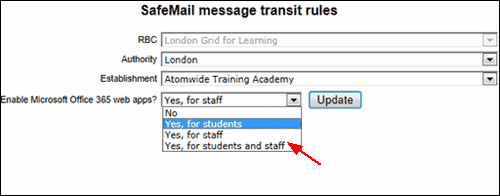
The web apps can then be accessed when users are logged into their LondonMail account.
Once logged in they will need to click on the OneDrive tab to access the web apps.

Selecting the No option will prevent the tab from being shown to any users. The default option is No so you will need to actively change this.
Selecting Yes, for a particular group or all groups, will result in the link to MS Office Live being shown to the specified group(s).
Click Update once you have made your selection.
See also:
