Once StaffMail has been enabled for a school as a whole, it will also need to be enabled for individual users.
Enabling multiple StaffMail accounts
If you have a small number of users that require StaffMail enabled, you will need to do this for each user individually via the Email >> LGfL StaffMail Accounts page.
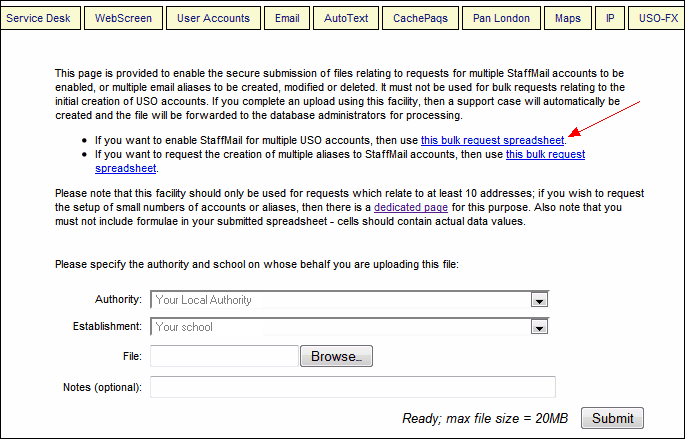
If there are more than 10 StaffMail accounts that need to be enabled at your school, you may request that this is done by the Service Desk by using the spreadsheet found on the LGfL StaffMail bulk request page.
Download the spreadsheet found under the first link and list all USO account user names for which StaffMail should be enabled.
Use the same page to upload the completed spreadsheet. This action opens a support case and you will be notified via this case when the request has been processed.
Creating multiple StaffMail aliases
If you have a small number of users that require aliases, you will need to do this for each user individually via the Email >> LGfL StaffMail Accounts page.
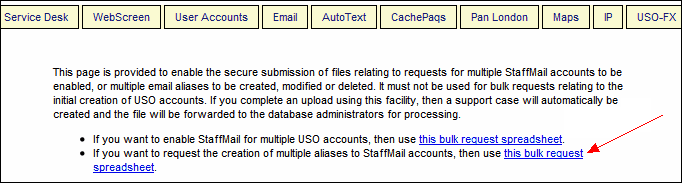
If there are more than 10 aliases that need to be created, you may request that this is done by the Service Desk by using the second spreadsheet found on the LGfL StaffMail bulk request page.
Download the spreadsheet found under the second link and list all StaffMail addresses and the alias(es) you would like created for each one. Each real address can have up to 10 aliases.
Use the same page to upload the completed spreadsheet. This action opens a support case and you will be notified via this case when the request has been processed.
See also:
