I want to change the address of a shared mailbox, how do I do this?
In order to change the address of a shared mailbox, you must create the replacement address before removing the original one.
To create another alias for a shared mailbox, you will need to know the mailbox number.
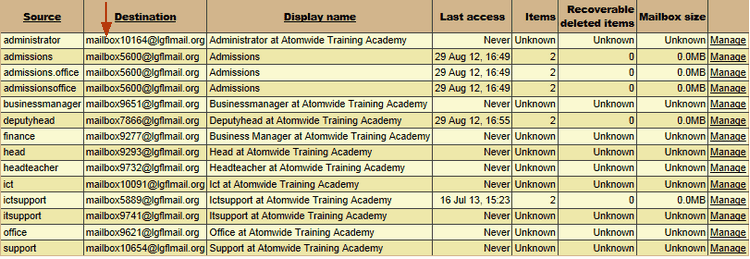
This can be found by going to Email > LGfL StaffMail accounts.
Select your school's domain from the Domains menu.
Then change the Activity menu to Manage shared mailboxes.
The mailbox number is shown in the Destination column, please make a note of the full address.
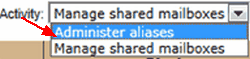
Then you will need to navigate back to the Administer aliases page by using the Activity drop downmenu again.
You will then need to add an alias by scrolling to the bottom and typing the alias name you prefer into the text box in the Mailbox column.
When selecting the destination you will need to find the mailbox number that you noted down earlier and select that mailbox.
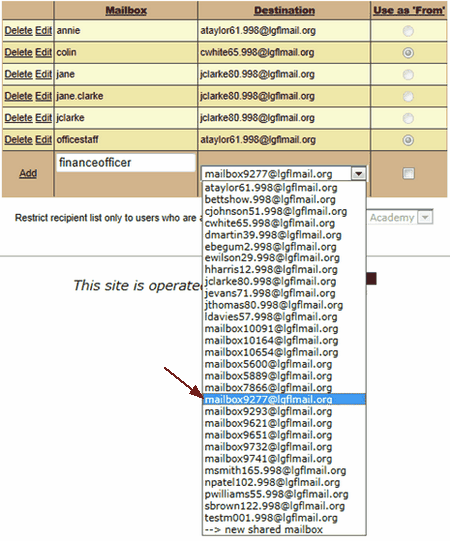
This will create another alias for the shared mailbox. After this is done you can remove the old alias.
If you wish to remove the old alias navigate back to the Manage shared mailboxes page by selecting this from the Activity dropdown list.
Find the old alias and click Manage.
You will then have the option to Delete the source alias, but leave the destination mailbox intact
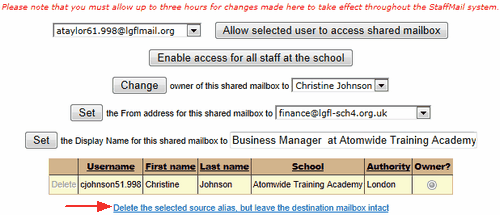
 Please note that if you delete an alias from a shared mailbox that address can no longer be used and any emails sent to that address will not be received but will bounce back to the sender.
Additional information regarding shared mailboxes can be found here.
