LGfL schools
Please refer to the LGfL User Guide by clicking here.
A school using Arbor can export data using USO-AutoUpdate.
There is no need for the school to install any software.
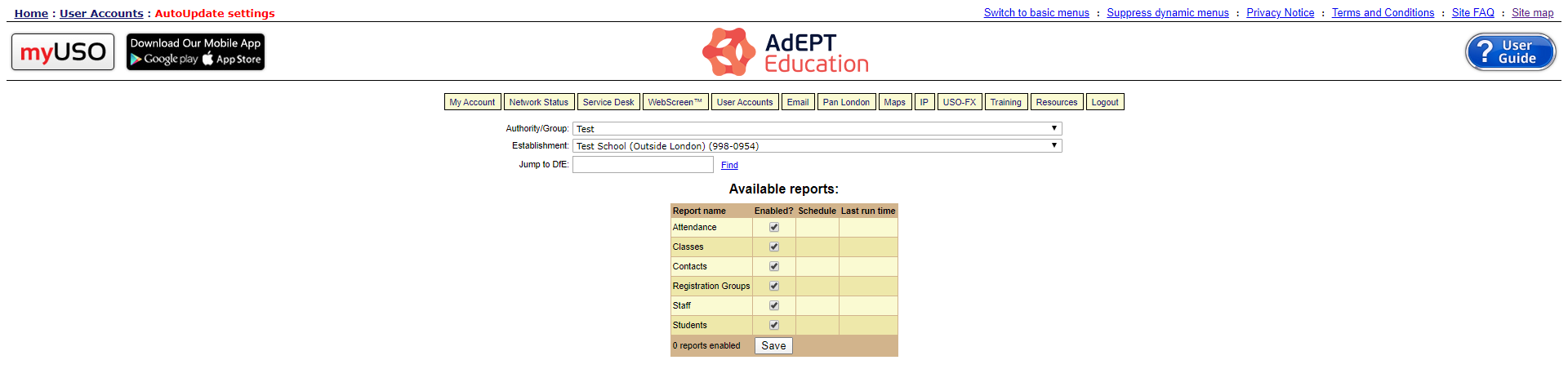
The following reports are currently supported:
•Attendance
•Classes
•Contacts
•Registration Groups
•Staff
•Students
Setup
To setup integration between Arbor and USO, the school must do the following:
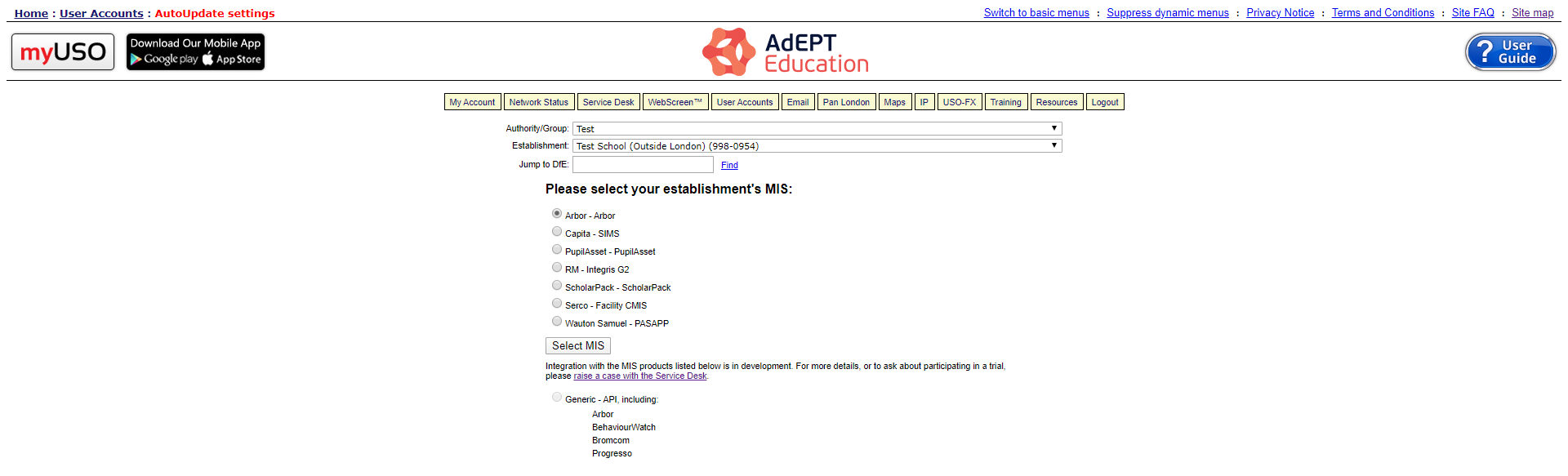
1.First visit User Accounts >> AutoUpdate settings and select Arbor
2. Select the reports you wish to export and click Save.
3. A link will then appear that must be clicked.

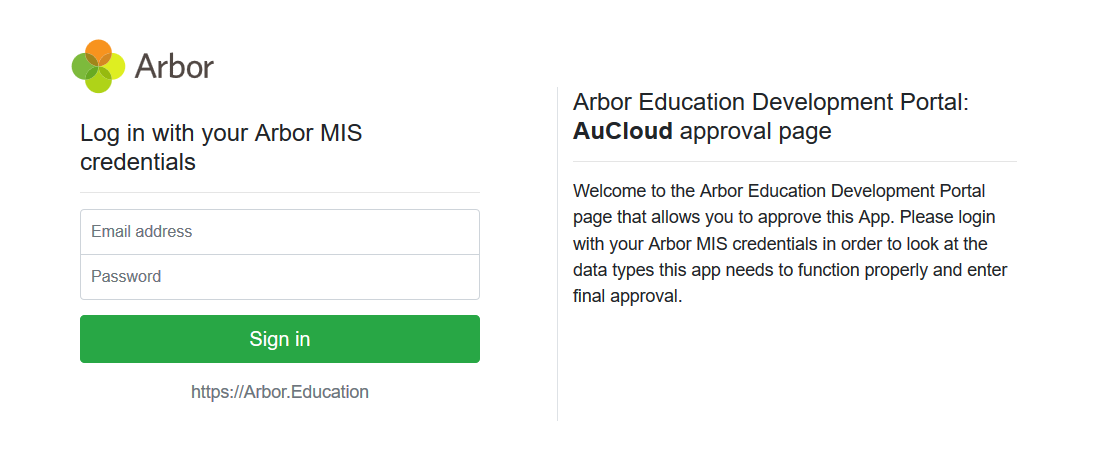
4. Please enter your credentials and click Sign in.
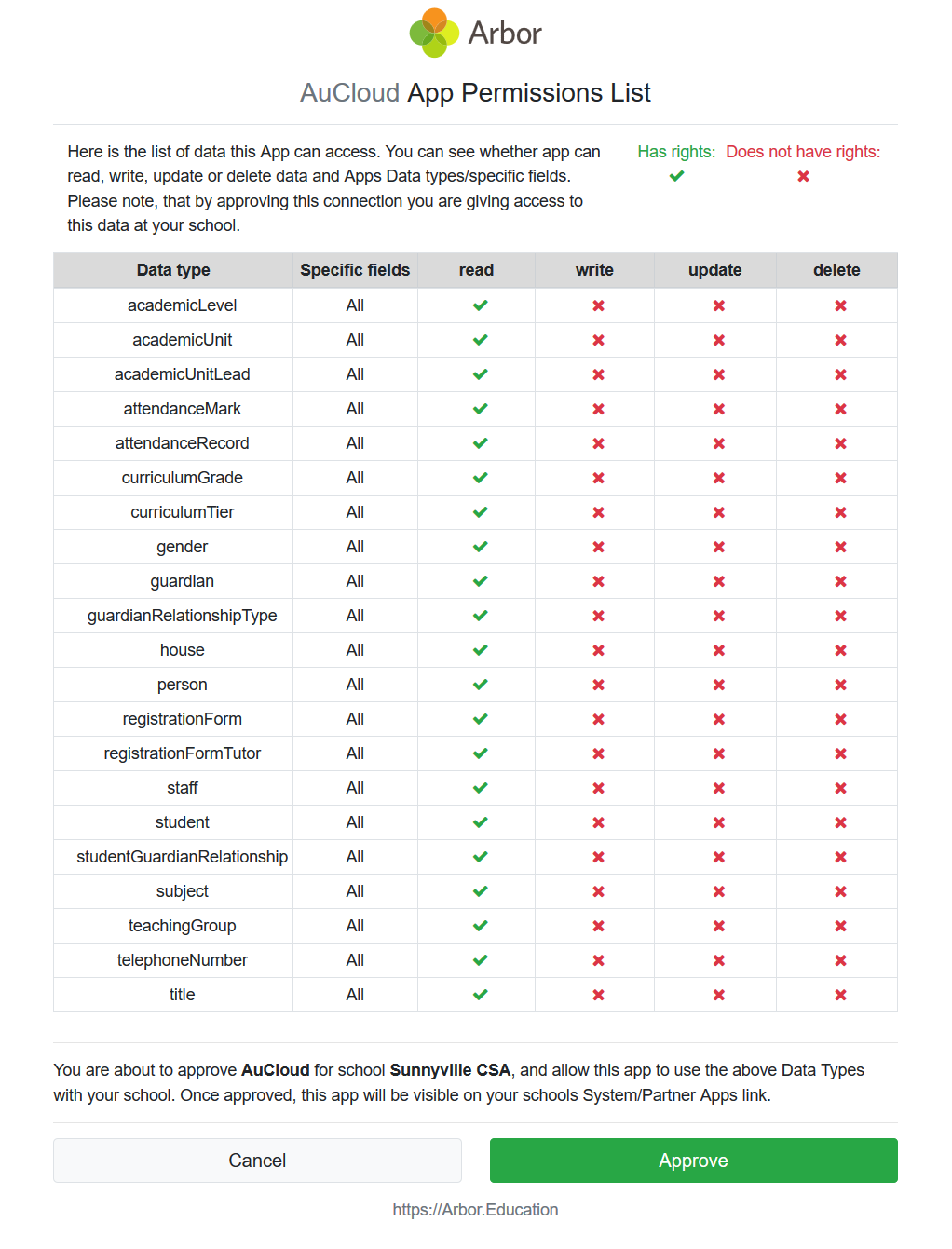
5. After checking the information, press approve to approve the request.
6. You will redirected to this page, please click the AutoUpdate Settings link to complete the setup.

7. You will then be able to activate the required reports or with 'Attendance' reports, set up a schedule.
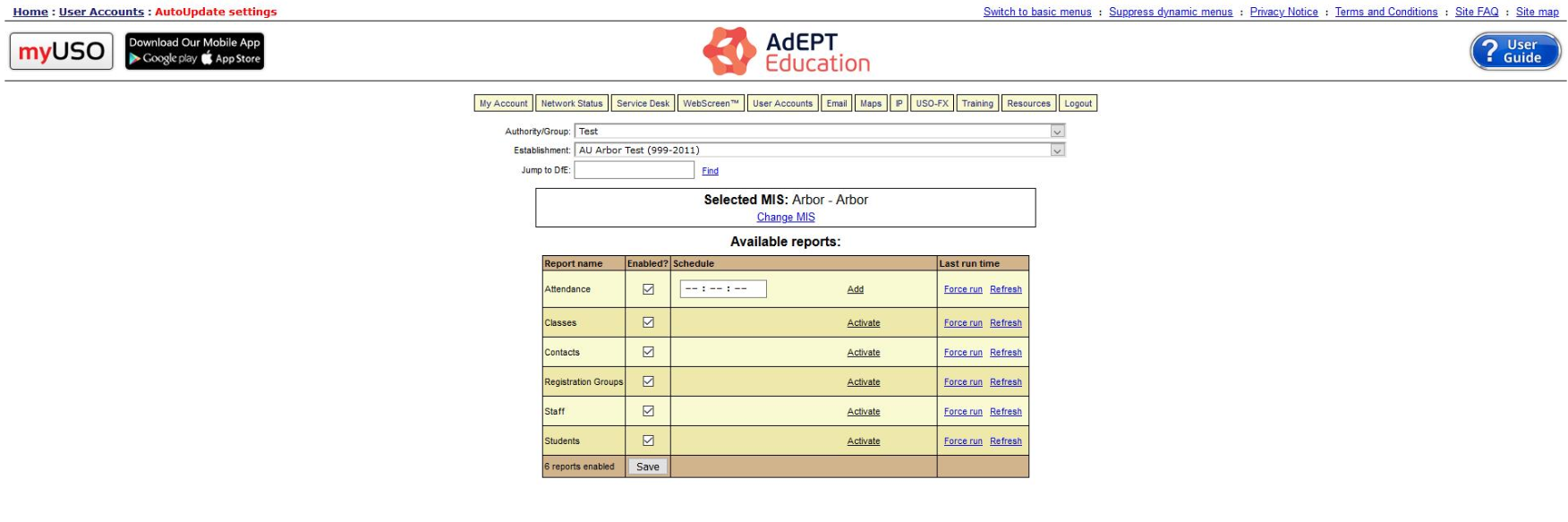
More information on configuring this page is visible here.
Once AutoUpdate has run for the first time, you can check the outcome via the User Accounts >> Whole School Bulk Results section of the support site.
