The RD Gateway should be used by schools that need students as well as staff to be able to access the school network remotely.


Logging in to the RD Gateway on Windows
You will need your Nominated Contact/IT person to send you the RDP shortcut which looks like this:

Double-click on the RDP shortcut to open it and log in using your USO username and password.
You will see the following:
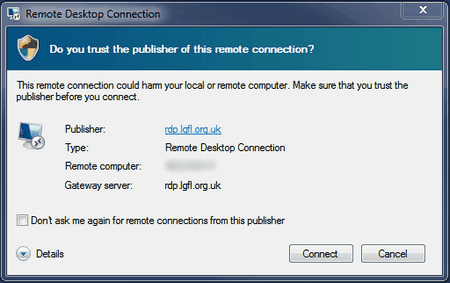
Click the Connect button.
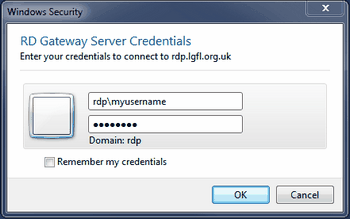
You will then be prompted for your local network authentication.
If you are logging in from a computer running Windows you must enter a domain in front of your USO username.
You should therefore enter rdp\yourusername.123 and then enter your usual USO password in the box below. Click OK.
 Without the rdp\ prefix your login will NOT be successful.
Once you have logged in and a connection has been made to the server inside the school you will need to log in again, this time using the details you normally use to log on to the school computers.
Note to Nominated Contacts: although the instructions state to enter rdp\ as the domain, in reality any text will accomplish the same job.
Logging in to the RD Gateway on Mac
Before you are able to log into the RD Gateway you will need to have the Microsoft Remote Desktop app installed on your machine. This can be found in the App Store.
You will also need a copy of the RDP shortcut which can be downloaded from the support site or sent to you by a Nominated Contact.
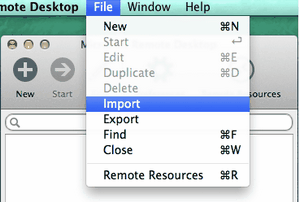
Open the Microsoft Remote Desktop app and go to File > Import.
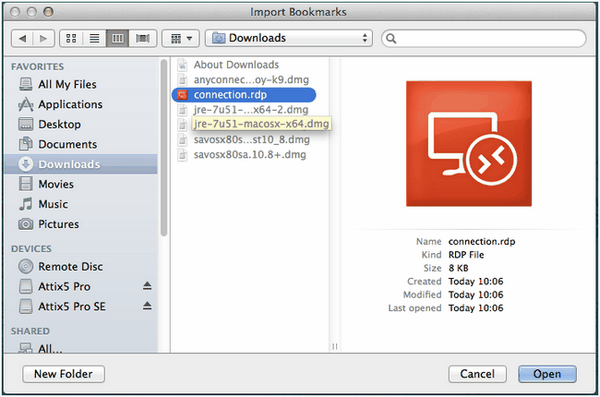
Then find the default.rdp file that should be saved locally on your machine. Click Open.
The file with then be listed in the Microsoft Remote Desktop app.
Within the app, click Preferences to open a configuration window.
On the right-hand side, in the User name field, enter RDP\USOusername.xxx
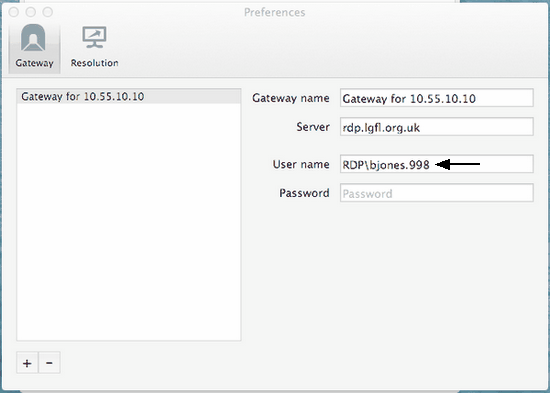
Close the window to save the changes.
Please note this information only needs to be entered once, the username will still be stored next time you open the app.
You can now start your connection, double click the IP address shown under My Desktops to launch the connection.
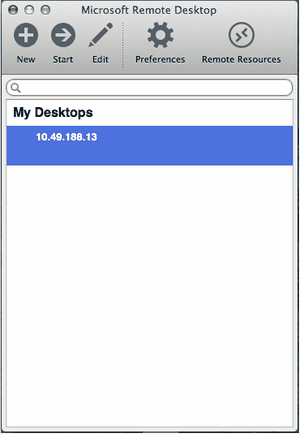
A remote connection will then be launched.
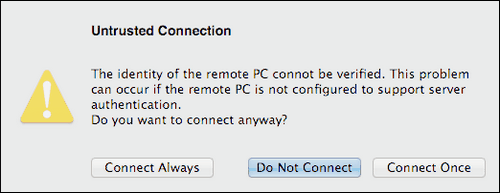
An Untrusted Connection message will pop up, to carry on with the connection click Connect Once.
If you do not wish to see this message every time you launch a connection, select Connect Always.
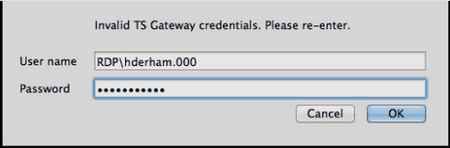
You will then need to log in by entering RDP\USO username and your USO password.
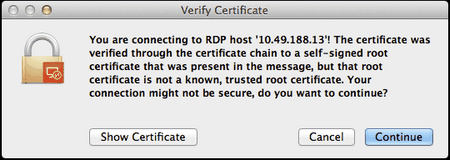
A certificate message will be shown, click Continue to carry on with the connection.
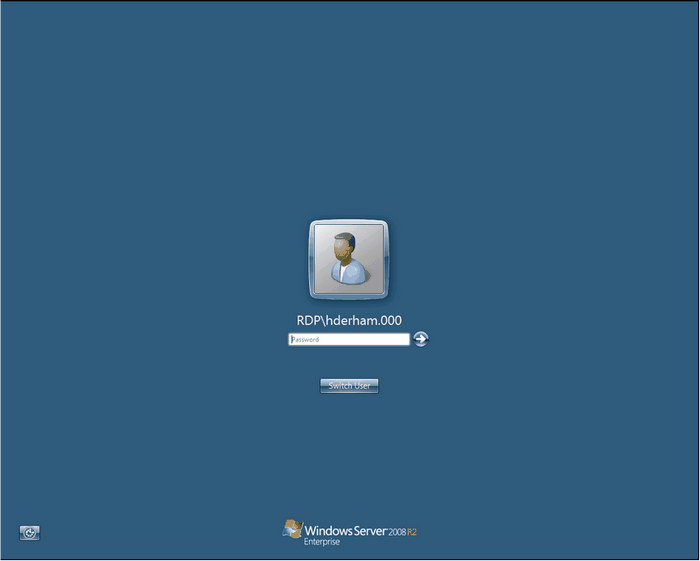
This will complete the connection and allow you to log into the remote computer.
See also:
