The Firewall and Mail Relay section within LGfL deployment will display any requested public IP addresses and mail relay rules
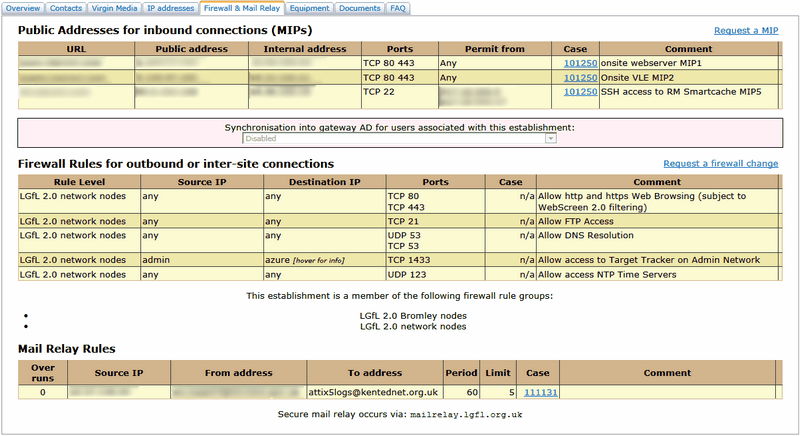
Public Addresses for inbound connections (MIPs)
To request mapped IP addresses, please click on the Request a MIP link, fill in your requests and submit it to Wavenet Education via the web page or download the spreadsheet, fill it in as shown in the template and upload it to Wavenet Education by raising a support case.
Permissions to use the RDP Gateway
If you have a terminal server that you wish to be accessed remotely by staff and pupils, please request that the relevant user group be granted permissions to access this server via the RDP gateway. This can be done by raising a case and stating the internal IP address of your server and specifying who should be able to access it. The access options are: Staff only, Staff and students or only users whose USO account profile contains the permission "Remote access RDP gateway". (If you wish to choose the last option, you will also need to specify the individuals that need to have this particular permission.)
Firewall Rules for outbound connections
To request firewall rules to be configured, please click on the Request a firewall change link, download the spreadsheet linked to at the bottom of the page, fill it in as shown in the template and upload it to Wavenet Education by raising a support case. Please provide the source and destination IP addresses that you need to have configured.
Mail Relay Rules
If you have devices on your network that need to be able to send email to any address, you will need to request these to be configured for you by raising a support case and outlining your requirements.
You will need to specify the IP address of each device, the "from" address you want the device to have and the recipient address that the device needs to be able to send mail to. The from address of a device can be something@yourschool.org.uk or any other address you need it to use. The from address can also contain wildcards in the first part of the address. This would mean that an address could be specified as %@yourschool.org.uk
Such devices will be enabled to send a limited number of emails per hour to ensure that if the device goes wrong, it does not result in wider email problems that impact on the entire school. If you know the device must send a certain number of emails within a single hour, please specify this as part of the Mail Relay configuration request.
For example:
In the image above -
•The value shown in the Period column is the a number of seconds (in the image above it’s 60s)
•The value shown in the Limit column is the number of emails allowed in that period before the email relay stops sending email (in the image above it’s 5 emails).
If during the specified period the limit is reached, then the number in the Overruns column is increased by 1. As a result, the email relay gets refused until the number of emails sent in the previous period is below the limit. In the image above, the limit has never been reached but this value is useful to see if you have a problem with the device sending mail or need to increase the Limit or Period. If the Overruns column shows a large number, this tells you there is a problem.
For example, when the photocopier tries to send emails, the messages will go out as required until the device sends more than 5 emails in 60 seconds. When this happens, the email relay stops accepting emails from the photocopier until the number of emails sent by the photocopier in the previous 60 seconds is less than 5. Once the number of emails being sent falls below the limit, the relay starts accepting email again.
See next:
